

Mixed Order Guidelines
Merchants may want the option to ship from different hubs due to stock issues or reduced deliverable costs. In such cases, the main merchant account is usually lined with one hub, the parent hub. The other hubs are linked with non-parent hubs. A separate Global-e account is created for the non-parent hubs, which doesn’t necessarily require a separate SFCC site. How Mixed Orders Work- A customer visits your site and buys products held in inventory in different hubs.
-
Global-e creates the order based on how the products are linked with the hubs.
-
SendCartsends the hub code linked with a particular product to Global-e -
Global-e receives the information and sends the payload a bit differently in a
SendOrderToMerchantcall. -
On the SFCC side, Global-e processes the payload to set the Order Type and Main/Sub OrderIDs in the order custom attributes.
Order types:

- MixedOrderMainOrder: if the product in the order has stock in the parent hub.
- MixedOrderSubOrder: if the product in the order has stock in the non-parent hub
-
Under Global-e Mixed Orders, SubOrder IDs holds the Main Order ID in the order custom attribute and Main Order ID holds a string of SubOrderID’s to link the orders together.

-
-
Scenario 1: A customer orders products belonging to a parent hub.
Result:
SendCartsends the hub code for each product. On SFCC and Global-e, one order is created and marked as SingleOrder. -
Scenario 2: A Customer orders two products belonging to a non-parent hub and parent hub.
Result:
SendCartsends a hub code for each product. On the SFCC and Global-e side, two orders are created. One order is a MixedOrderMainOrder type for the product belonging to the parent hub. It also holds the SubOrder ID in the order custom attribute. The other order is marked MixedOrderSubOrder type for the product belong to the non-parent hub and it will hold theMainOrderID in order custom attribute. -
Scenario 3: The customer orders two products belonging to one non-parent hub.
Result:
SendCartsends a hub code for each product. On the SFCC and Global-e side one order is created. and marked as SingleOrder. -
Scenario 4: A customer orders two products belonging to two different non-parent hubs.
Result:
SendCartsends a hub code for each product. On the SFCC and Global-e side two orders are created and marked as MixedOrderSubOrder. - Scenario 5 : A customer orders two products belonging to two different hubs, but one product has inventory in both hubs. Result: SendCart is coded to send one hub code at a time so you have to choose which hub code to send. In order to avoid the risk of introducing a 1-to-many relationship, resulting in large payloads and possible complications, the best option is to send one hub code to link the product.
Required customization
The cartridges contain the necessary functions but require some additional customization according to the project’s specific requirements.-
Custom product inventory lists
The out-of-the-box implementation provided by cartridges allows using different inventory lists for various products. By default, SFCC supports only one inventory list per site. However, this setting has been updated, and you can now define which inventory list should be used to manage product inventory based on the selected product in the storefront. To activate this option:
-
Go to Merchant Tools > Site Prefrences > Custom Site Prefrence Group > Global-e Setting > Use Custom Product Inventory Lists and select Yes from the drop-down menu.

-
Override the hook handler file “onGlobaleGetProductInventoryListId.js“ (which returns a null value by default) and implement proper logic in the new overridden file.

-
Go to Merchant Tools > Site Prefrences > Custom Site Prefrence Group > Global-e Setting > Use Custom Product Inventory Lists and select Yes from the drop-down menu.
-
Send Cart. Hub Code of the product
In the
SendCartrequest, sent from SFCC to Global-e before the checkout page is shown, the product level is set to propertyHubCode. By default, the null value is set intoHubCode, but when the Mixed Orders feature is used, the property should contain the ID of the hub (which is configured on the Global-e side beforehand).The out-of-the-box setting should be overridden. You need to override the file onGlobaleGetPliHubCode.js which returns a null value by default and replace null with the logic that returns the proper hub ID.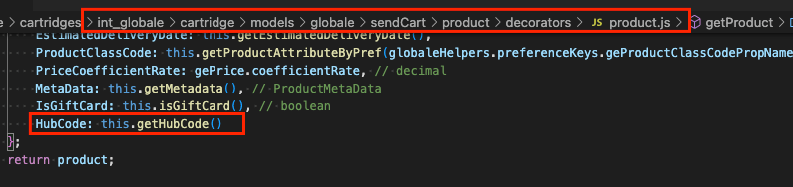

- Storefront My Account/Order History/Order Details pages On the SFCC storefront, the mixed orders are shown as usual single orders. In the My Account section, the order number of the main order is shown but the order page contains the product and prices calculated based on the mix of main and suborders. To customers, the order appears as a single order in the same currency they used when placing the order. The Global-e cartridges contain the logic that is based on the default layout of My Account section of SFCC base architecture. That is why when activating Mixed Orders on the SFCC side, the merchant development team should review all the templates/scripts used for the “My Account” section and properly adapt some of them if they have been changed compared to the base SFCC architecture.