

SFCC Job - GlobaleSettings
This section describes the Globale Settings Job as part of the default/basic functionality of the Global-e SFCC cartridge. Globale Settings Job pulls data from the Global-E side and stores it in SFCC custom objects.Job Steps
- AppSettings - Loads cached data from Global‑e API ./Browsing/AppSettings and /Browsing/AppVersion.
- Countries - Loads cached data from Global‑e API ./Browsing/Countries.
- CountryCoefficients - Loads cached data from Global‑e API ./Browsing/CountryCoefficients, ./Browsing/CountryCoefficients.
- Cultures - Loads cached data from Global‑e API ./Browsing/LocationsDefaultCulturesList.
- Currencies - Loads cached data from Global‑e API ./Browsing/Currencies.
- CurrencyRates - Loads cached data from Global‑e API ./Browsing/CurrencyRates.
- RoundingRules - Loads cached data from Global‑e API ./Browsing/RoundingRules.
- ActiveHubDetails - Loads cached data from Global‑e API ./Browsing/ActiveHubDetails.
- InvalidateCache - Invalidates SFCC page cache.
SFCC Job - GlobaleProducts
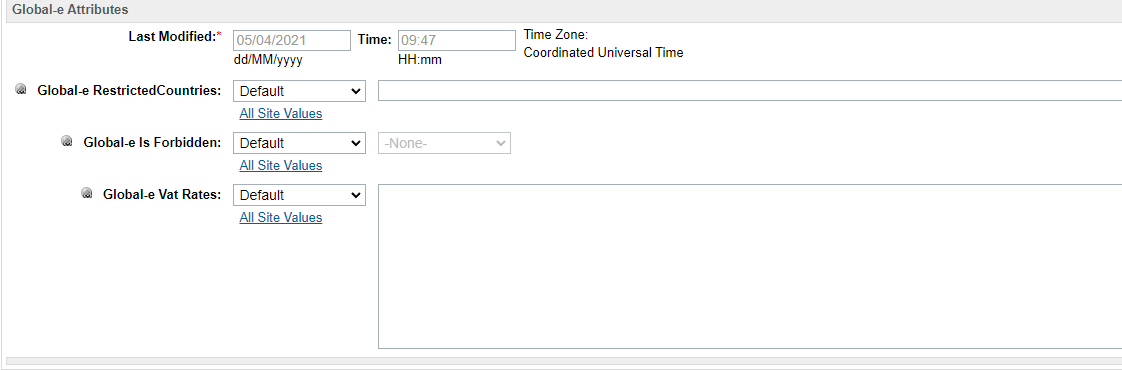
This section describes the Globale Products Job as part of the default/basic functionality of the Global-e SFCC cartridge. Globale Products Job pulls product restrictions and end-customer country product VAT rates (if it is configured on Global-e side) and stores them in a product’s custom attributes:- Global‑e RestrictedCountries (
geRestrictedCountries). - Global‑e Is Forbidden (
geIsForbidden). - Global‑e Vat Rates (
geVatRates).
Job Steps
LoadRecentProductCountryS- Loads cached data from Global‑e API./Browsing/RecentProductCountryS.ImportRecentProductCountryData- Imports the CVS feeds with product records (geRestrictedCountries,geIsForbidden, andgeVatRatescustom product attributes are updated).ArchiveRecentProductCountryData- Moves CSV feeds to archive folder.
Configuration
SFCC Staging
- Go to Administration > Operations > Services > Service Credentials.
- Update the service credential with ID Globale-RecentProductCountryS.
| Preference Name | Preference Value |
|---|---|
| URL | https://api.global-e.com/Browsing/RecentProductCountryS |
| User | Empty |
| Password | Use the Global-e PRODUCTION Merchant GUID |
SFCC Development
No need to change the existing configuration.SFCC Job - GlobaleOrderNotifications
This section describes the GlobaleOrderNotifications job as part of the default/basic functionality of the Global-e SFCC cartridge. The job sends order update notifications from SFCC to Global‑e (in case such notifications are in the integration scope). The job contains multiple job steps that handle different types of notifications:- UpdateOrderStatus
- UpdateOrderDispatch
- CreateOrderRefund
- UpdateRMA
UpdateOrderStatus Job Step
When an order is cancelled on the SFCC side it might be required to send the order status update notification from the SFCC to Global-e (depending on the integration scope and the solution). The job step handles such cases.How it Works
-
Once an order is cancelled on the SFCC side it’s required to trigger the custom Global‑e hook “globale.outboundOrderStatusUpdate“, it could be done using the OOTB helper script “cartridges\int_globale\cartridge\scripts\helpers\globaleHooksHelper.js“, e.g:
The hook should be triggered with two parameters: SFCC/Global‑e order number and notification payload (the payload object and use cases are described in the UOS API document, which is not included in the cartridge documentation and should be requested additionally).
- After the hook invocation Global‑e logic creates the notification custom object that is used then by the job step to send the notification to Global‑e API (the job should be scheduled to run every 15 minutes).
Required Customisation
Only one thing is required here and should be done by Merchant’s System Integrator.- trigger the custom hook “globale.outboundOrderStatusUpdate“ with all the required parameters once an order is cancelled on the SFCC side.
UpdateOrderDispatch Job Step
When an order is dispatched to Global-e it might be required to send the order dispatch update notification from the SFCC to Global-e (depending on the integration scope and the solution). The job step handles such cases.How it Works
-
To send the UpdateOrderDispatch notification the custom Global-e hook “globale.outboundOrderDispatchUpdate“ should be triggered, it could be done using the OOTB helper script “cartridges\int_globale\cartridge\scripts\helpers\globaleHooksHelper.js“, e.g:
The hook should be triggered with two parameters: SFCC/Global‑e order number and notification payload (the payload object and use cases are described in the UODv2 API document, which is not included in the cartridge documentation and should be requested additionally).
- After the hook invocation Global‑e logic creates the notification custom object that is used then by the job step to send the notification to Global‑e API (the job should be scheduled to run every 15 minutes).
Required Customisation
Only one thing is required here and should be done by Merchant’s System Integrator.- Trigger the custom hook “globale.outboundOrderDispatchUpdate“ with all the required parameters once the order notification should be initiated.
CreateOrderRefund Job Step
When an order refund should be issued it might be required to send theCreateOrderRefund notification from the SFCC to Global-e (depending on the integration scope and the solution).
The job step handles such cases.
How it Works
-
To send the
CreateOrderRefundnotification the custom Global-e hookglobale.outboundOrderRefundUpdateshould be triggered. It could be done using the OOTB helper script “cartridges\int_globale\cartridge\scripts\helpers\globaleHooksHelper.js“, as follows:The hook should be triggered with two parameters: SFCC/Global‑e order number and notification payload (the payload object and use cases are described in the COR API document, which is not included in the cartridge documentation and should be requested additionally). Note: Keep in mind that the payload object should contain “header“ and “body“ properties. - After the hook invocation, Global‑e logic creates the notification custom object that is then used by the job step to send the notification to Global‑e API (the job should be scheduled to run every 15 minutes).
Required Customisation
Only one thing is required here and should be done by Merchant’s System Integrator.- Trigger the custom hook “globale.outboundOrderRefundUpdate“ with all the required parameters once the order notification should be initiated.
UpdateRMA Job Step
The job step sends RMA update notifications from the SFCC to Global‑e (depending on the integration scope and the solution). Usecase: provide the internal RMA number to Global-e instead of suing the Global-e one. The job step handles such cases. Additional documentation could be found in the document “Global‑e SFCC Cartridge Return Merchandise Authorization“.How it Works
-
to send the UpdateRMA notification the custom Global-e hook “globale.outboundOrderRMAUpdate“ should be triggered, it could be done using the OOTB helper script “cartridges\int_globale\cartridge\scripts\helpers\globaleHooksHelper.js“, e.g:
The hook should be triggered with two parameters: SFCC/Global‑e order number and notification payload (the payload object and use cases are described in the UpdateRMA API document, which is not included in the cartridge documentation and should be requested additionally).
- After the hook invocation Global‑e logic creates the notification custom object that is used then by the job step to send the notification to Global‑e API (the job should be scheduled to run every 15 minutes).
Required Customisation
Only one thing is required here and should be done by Merchant’s System Integrator.- Trigger the custom hook “globale.outboundOrderRMAUpdate“ with all the required parameters once the order notification should be initiated.
SFCC Job - GlobaleCatalogFeed
This section describes the “GlobaleCatalogFeed” job, which is part of the default functionality of the Global-e SFCC cartridge. As part of the integration process, Global‑e requires that you perform a periodic export of your products catalog to handle product classification and restrictions. The “GlobaleCatalogFeed” job generates a Catalog Feed and uploads it to an SFTP folder configured under Global‑e Site Preferences, from which Global‑e pulls the updated catalog information. Due to SFCC technical limitations, the “GlobaleCatalogFeed’ job can only:- Process variant/single products that are assigned to any category of your current Site storefront catalog.
- Export products to the newly generated CSV file.
High-Level Flow
The GlobaleCatalogFeed job picks up each product that has been modified or created since the last job run time and saves them to a CSV file. This CSV file is pushed to a pre-defined SFTP folder; this folder can be hosted by either, the merchant or Global‑e. A different periodic service, hosted on the Global‑e servers, looks for the new catalogue export CSV file and runs each new and updated product through various classification processes. Another SFCC job is scheduled to query the Global‑e API and returns the product classification and restriction information to SFCC.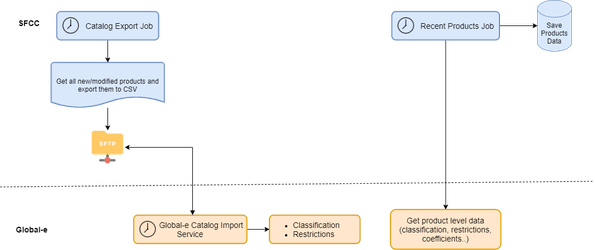
Installation
As part of the installation, set up the GlobaleCatalogFeed Job to run periodically. This is usually set to once a day but can be adjusted according to your catalog update frequency. Mandatory fields:- SKU
- Display Name
- Product Description
- Material composition
- Country Of Origin
- Image URL
- Kids products
The product information is not available on SFCC, what can I do?
If some mandatory fields are not available in your SFCC instance but are available in another backend system, you can disable GlobaleCatalogFeed and export your catalog directly from your product management system. Global‑e can process CSV files and native SFCC xml exports.Catalog Feed Columns
The following table details the list of Catalog Feed columns. Make sure to be represented them in the Catalog CSV file. Even if the column is not mandatory, Global‑e strongly recommends adding it to the CSV Catalog file.| # | Column Name | Type | Description | Mandatory | Sample Value | Comments |
|---|---|---|---|---|---|---|
| 1 | Id | String | SKU | yes | 22398003 | |
| 2 | ParentProductID | String | Product parent SKU, i.e. Master Product ID, if it exists | no | P22398003 | |
| 3 | HS Code (Commodity code) | String | Product commodity code | no | 62052000 | |
| 4 | Product Category | String | Product category | no | Ladies Shoes | |
| 5 | DisplayName | String | The product name displayed on the website | yes | Diamond Quilted Cushion | |
| 6 | LongDescription | String | Detailed product name (i.e. product long description) | yes | A stylish cushion brings added comfort to your bed. | |
| 7 | Height | Number | Product height. Default: cm | no | 1 | |
| 8 | Width | Number | Product width. Default: cm | no | 5 | |
| 9 | Length | Number | Product length. Default: cm | no | 3 | |
| 10 | Volume | Number | Product volumetric weight. Default: cubic centimeters | no | NULL | |
| 11 | Weight | Number | Product weight. Default: gr | yes | 460 | |
| 12 | OriginCountry (ISO3) | String | Country where the product was manufactured | yes | GB | |
| 13 | IsBlocked | Number | The product will be blocked in all countries operated by Global-e | yes | 0 | |
| 14 | IsVirtual | Number | Indicates if the product does not consist of physical goods (such as courses, membership, coupon voucher, and more.) | no | 0 | |
| 15 | VATRate | Number | Indicates product has a VATRate to consider | no | 20 | |
| 16 | Price | Number | Product price. Default will be merchant currency | no | 12.99 | |
| 17 | Keywords | String | Product keywords | no | shirt | |
| 18 | Size | String | Product size | no | S | |
| 19 | Color | String | Product color | no | Blue | |
| 20 | IsKidsProduct | Boolean | Indicates if the product is Kids clothing. This field is mandatory in order to apply the correct VAT calculation. | yes | false | |
| 21 | ProductURL | String | URL of the product page | no | https://www.merchant.com/product/ | |
| 22 | ImageURL | String | URL of the product image | no | https://www.merchant.com/product/image.png | The value for this column might be set only for the first run of the job when is exported full products catalog. When the job is run in ‘delta’ mode this column might contain an empty value. (for this should change configuration of feed and set empty value by default) |
| 23 | IS DG | Number | For merchants shipping Dangerous Goods with Global‑e via DHL, IsDangerousGoods = 1 is blocked automatically | no | 0 |
GlobaleCatalogFeed - SFCC Job
The GlobaleCatalogFeed Job is part of the standard functionality provided in the Global‑e SFCC cartridge. The catalog feed has two components (Job steps): Generate Catalog Feed and Upload Catalog Feed.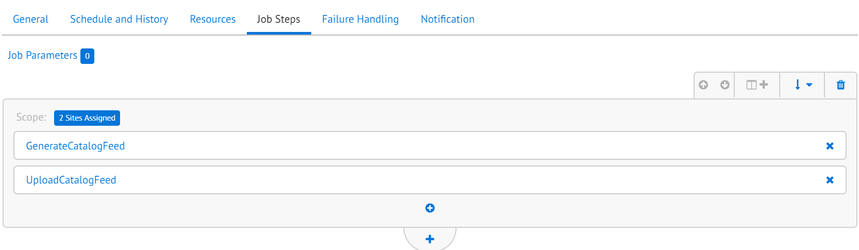
| Generate Catalog Feed | Upload Catalog Feed |
|---|---|
| This Job Step is responsible for generating the Catalog Feed in CSV format based on the parameters configured in the Global-e Site Preferences and for placing the result file into the SFCC IMPEX folder. | This Job Step is responsible for uploading the Catalog Feed file placed in the SFCC IMPEX folder to the SFTP folder configured in the Global-e Site Preferences so that Global-e can pull this file from that location and import it for further analysis. |
| GlobaleCatalogFeed2 - SFCC Job | GlobaleCatalogFeed3 - SFCC Job |
Catalog Feed Configuration
Custom Site Preference “Catalog Feed Configuration (geCatalogFeedConfig)“ The feed configuration is stored in site preference Catalog Feed Configuration(geCatalogFeedConfig) by path: Merchant Tools > Site Preferences > Custom Site Preference Groups > Global‑e Catalog Jobs Example of configuration:| Field Name | Type | Description | Is Mandatory |
|---|---|---|---|
| impex | object | Contains IMPEX-related data. | Yes |
| impex.folderPath | string | The folder path in IMPEX/* is where generated files are stored. | Yes |
| impex.archiveFolderPath | string | Archive folder path in IMPEX/* where are stored uploaded files. | No |
| sftpCredentialIDs | array | Contains SFCC service credential IDs which are used for uploading catalog feeds (e.g., [‘Globale-SFTPCatalogFeedUpload’]). | Yes |
| file | object | Contains files related to data | Yes |
| file.fileName | string | Name of a generated file. | |
| file.columns | array | The major field of file configuration that is used for defining the source of values that should be written into generating file. | Yes |
| feedData | object | Contains the feed-related data | No |
| feedData.catalogId | string | Catalog ID that will be iterated for generating a file with the product information. By default, all are assigned to site products. | |
| feedData.locale | string | An SFCC locale that is used during the filling of generating files. | |
| feedData.processOnlyModifiedProducts | boolean | If it is set to true the feed runs in ‘delta’ mode and process only the products which were modified after last feed run. | No |
| Type | Description | Sample(s) |
|---|---|---|
| product | The value is taken from the products attribute, indicated in the “attr” property. | {“type”: “product”, “attr”: “ID”} {“type”: “product”, “attr”: “masterProduct.ID”} {“type”: “product”, “attr”: “custom.hsCode”} “type”: “product”, “attr”: “longDescription.markup”} |
| weight | The value is taken from the products attribute, indicated in the “attr” property. In “unit” attribute is set unit measurement. For example: {“type”: “weight”, “attr”: “custom.geWeight”, “unit”: “kg”}. This configuration means that the product custom attribute “geWeight” contains a value in kilograms and it will be converted to grams. The init value of an attribute: ‘1.2’ (kg) The output value of an attribute: 1200 (gr) The output value will be set in catalog feed .csv file | {“type”: “weight”, “attr”: “custom.geWeight”, “unit”: “kg”} |
| category | The value is taken from the products category attribute, indicated in the “attr” property. | {“type”: “category”, “attr”: “displayName”} |
| tax | The value is calculated as the tax value of the given product. No additional property is needed. | {“type”: “tax”} |
| price | The value is calculated as the product price from the price book Id indicated in the “attr” property. | {“type”: “price”, “attr”: “gbp-sale-prices”} |
| variationAttribute | The value is taken from the product variation attribute (indicated in the “attr” property) and its value (indicated in the “value” property). | {“type”: “variationAttribute”, “attr”: “size”, “value”: “value”} |
| productUrl | The value is generated as the Product URL (string), based on the product ID (as the parameter of URL indicated in the “attr” property), given Controller in the “controller” property and “host” property which allows setting the needed host value. If the “host” property doesn’t exist in configuration or it is empty then will be set a host of the environment. | {“type”: “productUrl”, “attr”: “pid”, “controller”: “Product-Show”, “host:” “www.example.com”} |
| imageUrl | The value is generated as the products image URL. No additional property is needed. | {“type”: “imageUrl”}* Run in ‘delta mode’ when the job is run in delta mode - no need to send the product’s image URL and should be sent empty values for all products {“type”: “static”, “attr”: ""} |
| preference | The value is taken from the Site Preference indicated in the “attr” property. | {“type”: “preference”, “attr”: “geMerchantCountryCode”}This will look for geMerchantCountryCode in Site Preferences |
| static | The value is used as is from the “attr” property. | {“type”: “static”, “attr”: ""} |
| custom | The value is taken from ‘return’ of handler function | {“type”: “custom”, “handler”: ”*/cartridge/scripts/globale/customHandler”}An example of the script’s body:module.exports = { getValue: function(product) { return (product.custom.product_online_patina ? ‘1’ : ‘0’); } } |
| code | The value is taken from ‘return’ of handler function | {“type”: “custom”, “handler”: “return (product.custom.product_online_patina ? ‘1’ : ‘0’)”} |
Catalog FeedUpload
SFCC service credential configuration The SFTP credentials provided by Global-e should be set in the SFCC service credential “Globale-SFTPCatalogFeedUpload“ (Administration > Operations > Services > Service Credentials > Globale-SFTPCatalogFeedUpload - Details):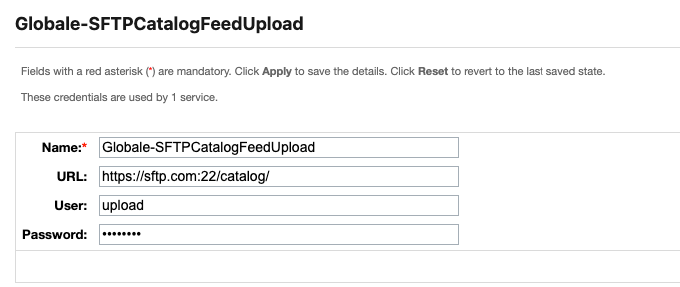
Contact Global-e to get the SFTP credentials (URL, username, and password).
-
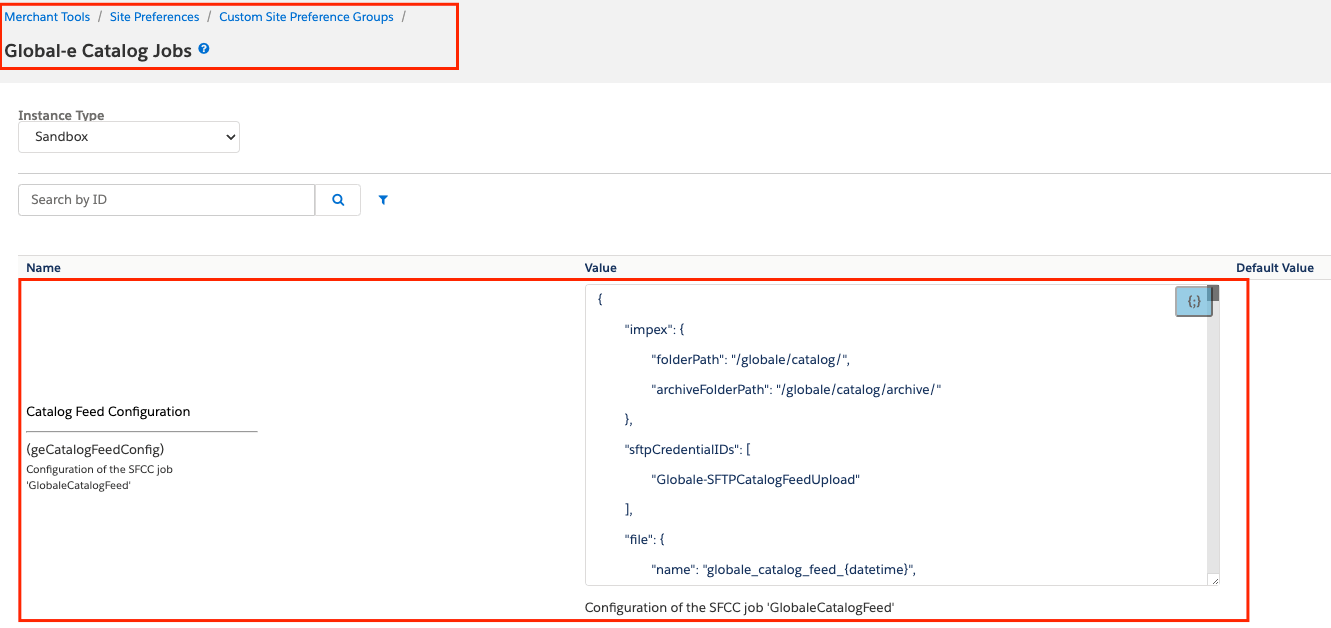
Check catalog json is set on the instance, go to Merchant Tools > Site Preferences > Custom Site Preference Groups > Global-e Catalog Jobs > Catalog Feed Configuration.
-
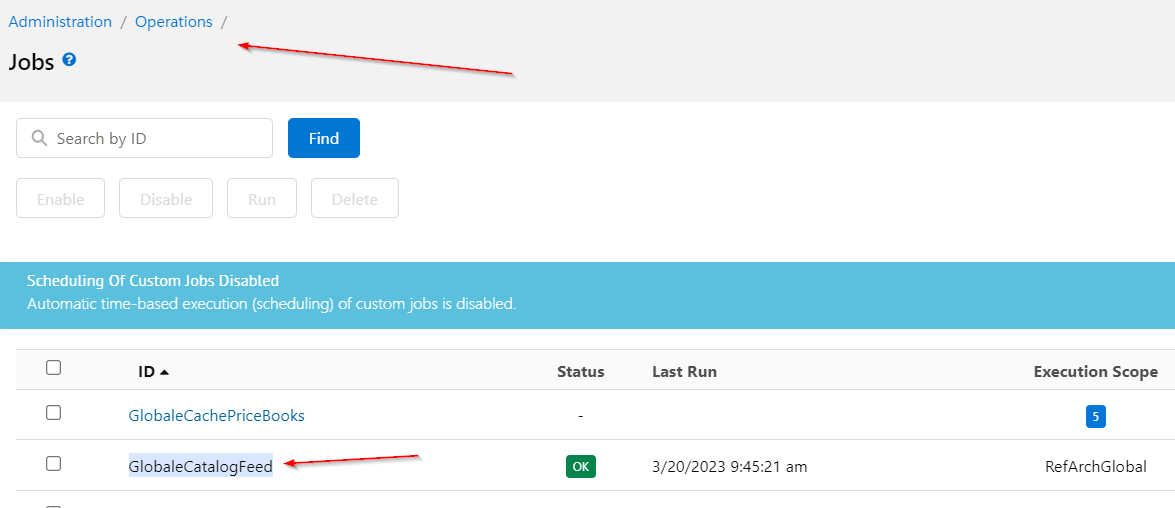
Go to Administration> Operation > Jobs > GlobaleCatalogFeed.
-
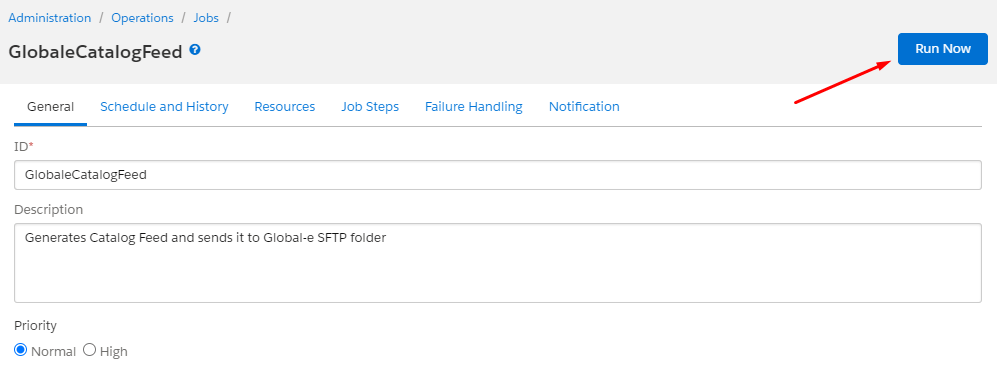
Click on GlobaleCatalogFeed and click Run Now.
- Once the job is complete, log into the SFTP location to verify if the file is there.
SFCC Job - GlobaleRestrictedItemsFeed
This section describes the “GlobaleRestrictedItemsFeed” job, which is part of the default functionality of the Global-e SFCC cartridge. As part of the integration process, Global‑e requires that you perform a periodic export of your product restrictions from SFCC to Global‑e. The “GlobaleRestrictedItemsFeed” job generates a Restricted Items Feed and uploads it to an SFTP folder configured under Global‑e Site Preferences, from which Global‑e pulls the updated restricted items information.High-Level Flow
The “GlobaleRestrictedItemsFeed” job picks up each product that has been modified or created since the last job run time and saves "" details to a CSV file. This CSV file is pushed to a pre-defined SFTP folder; this folder can be hosted by either, the merchant or Global‑e. A different periodic service, hosted on the Global‑e servers, looks for the new export CSV file with restrictions details, and runs each new and updated restricted item through various classification processes. Another SFCC job is scheduled to query the Global‑e API and returns the product classification and restriction information to SFCC.Requirements
Report Name
Report name should include merchant name as configured in Global‑e merchant settings and date/time data in the following format: {MerchantName}Restrictions_ddmmyyyyhhmm.csv For example – MyToysStoreRestrictions_100220151738.csvReport Schedule
The report can be sent at any time.Report Format
The report should be in CSV format.Report Upload
There are 2 options to upload the report:- On Global‑e sFTP
- On Merchant’s sFTP – the report can also be pulled from the merchant’s sFTP server. In this case, Global‑e will need write permissions to the folder where manifests are placed and this folder should also contain an archive sub-folder.
Report Structure and Data
General Requirements
In this paragraph, the report structure and data are described. The required data is mandatory, unless stated otherwise below. For easier read, the data is described as excel columns with column names (A, B, C etc.), however, the report shouldn’t include any column titles. It is important that the structure, as described below will be used when generating the restrictions feed to ensure correct processing of the feed and applying correct restrictions on the storefront and in the checkout. The number of lines in the feed should match the number of SKUs, brands or categories restrictions per country. For example:- If one SKU should be restricted in one country, then the feed should contain one line.
- If one SKU should be restricted in ten countries, then the feed should contain ten lines.
- If five SKUs, one brand and one category should be restricted in two countries, then the feed should contain twelve lines (two lines per each SKU, brand and category).
-
If at least one of the restriction rules apply to the product (either by SKU or brand or category) – such product will be restricted. For example, the following restrictions are sent to Global‑e via the feed:
-
Use-case 1
- Brand “NIKE” should be restricted for all countries.
- SKU0001 should not be restricted in France. SKU0001 represents Nike shoe for girls.
- In this scenario, the first restriction is valid and SKU0001 will still be restricted for all countries, including France;
-
Use-case 2
- Brand “NIKE” should not be restricted in all countries.
- SKU0001 should be restricted in France. SKU0001 represents Nike shoe for girls.
- In this scenario, SKU0001 will only be restricted in France
-
Use-case 3
- Brand “NIKE” should be restricted in all countries.
- Category “girl’s shoes” should not be restricted in all countries.
- In this scenario, all products belonging to category “girl’s shoes” will not be restricted other than products that are also associated with Nike brand which will be restricted in all countries
-
Use-case 4
- Category “girl’s shoes” should be restricted in all countries
- Product with SKU0001 should not be restricted in France. SKU0001 represents Nike shoe for girls.
- In this scenario, SKU0001 will be restricted in all countries, including France;
-
Use-case 1
- If the product is forbidden to be sold via Global‑e, then even if the merchant removes a restriction for this product to one or a few of the countries, it will not be enforced and product will still be restricted.
Feed Structure
For each restricted SKU or Brand or Category in the feed per Country, the following data should be included in the format, as described below: Column A – SKU – optional. If the merchant doesn’t wish to restrict any SKUs, this column should remain empty. Accepted Values: Product Code – an SKU provided by the merchant. Variations: For standard products:- Product SKU should be provided
- If only certain product variables should be restricted – then only SKUs of these variables should be provided
- If all the product variables should be restricted – then SKUs of all variables and master product SKU should be provided in the feed.
Examples
Standard Products, Brand and Category restriction
Merchant wants to restrict: SKU001 in China, Cuba and Denmark, SKU002 in China and Cuba, Brand001 in China and Cuba, Category001 in China, Cuba, Denmark and France, And to remove the restriction of SKU003 in Brazil:| A | B | C | D | E |
|---|---|---|---|---|
| SKU001 | 1 | CHN | ||
| SKU001 | 1 | CUB | ||
| SKU001 | 1 | DNK | ||
| SKU002 | 1 | CHN | ||
| SKU002 | 1 | CUB | ||
| Brand001 | 1 | CHN | ||
| Brand001 | 1 | CUB | ||
| Category001 | 1 | CHN | ||
| Category001 | 1 | CUB | ||
| Category001 | 1 | DNK | ||
| Category001 | 1 | FRA | ||
| SKU003 | 0 | BRA |
Configurable Product Restriction
Merchant has a configurable product – a golf glove with SKU0001. This product can be configured by customers during purchase, and customers can select glove size (S, M, L) and on what hand to wear the glove (L, R). Each of the customized options have their own SKU: Left hand Small – SKU0001SLH Left hand Medium – SKU0001MLH Left hand Large – SKU0001LLH Right hand Small – SKU0001SRH Right hand Medium – SKU0001MRH Right hand Large – SKU0001LRHUse-case 1 – not all variations are restricted
Merchant only wants to restrict all left-hand gloves in China. In this case, the feed should get 3 SKUs of left-hand glove (an SKU for each size variation).| A | B | C | D | E |
|---|---|---|---|---|
| SKU0001SLH | 1 | CHN | ||
| SKU0001MLH | 1 | CHN | ||
| SKU0001LLH | 1 | CHN |
Use-case 2 – all variations are restricted
Merchant wants to restrict all golf gloves to China. In this case, the feed should get 7 SKUs – an SKU for each size variation for left-hand and right-hand gloves and variation master SKU.| A | B | C | D | E |
|---|---|---|---|---|
| SKU0001SLH | 1 | CHN | ||
| SKU0001MLH | 1 | CHN | ||
| SKU0001LLH | 1 | CHN | ||
| SKU0001SRH | 1 | CHN | ||
| SKU0001MRH | 1 | CHN | ||
| SKU0001LRH | 1 | CHN | ||
| SKU0001 | 1 | CHN |
GlobaleRestrictedItemsFeed - SFCC Job
The GlobaleRestrictedItemsFeed job is part of the standard functionality provided in the Global-e SFCC cartridge. The restricted items feed has two components (Job steps): Generate Restricted Items Feed and Upload Restricted ItemsFeed.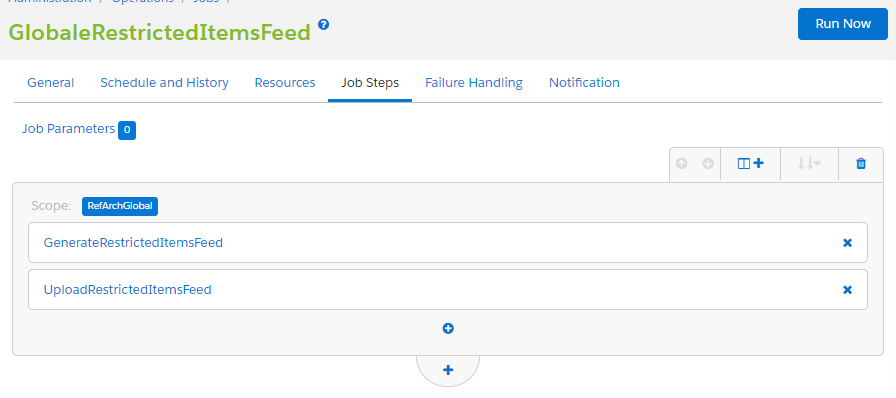
| Generate Restricted Items Feed | Upload Catalog Feed |
|---|---|
| This Job Step is responsible for generating the Restricted Items Feed in CSV format based on the parameters configured in the Global-e Site Preferences and for placing the result file into the SFCC IMPEX folder. | This Job Step is responsible for uploading the Restricted Items Feed file placed in the SFCC IMPEX folder to the SFTP folder configured in the Global-e Site Preferences, so that Global-e can pull this file from that location and import it for further analysis. |
| image2022-5-19_13-4-3.png | image2022-5-19_13-4-25.png |
Restricted Products Feed Configuration
Site Preferences
Custom Site Preference Restricted Items Feed Configuration (geRestrictedItemsFeedConfig). The feed configuration is stored in site preference **Catalog Feed Configuration (geRestrictedItemsFeedConfig)**by path: Merchant Tools > Site Preferences > Custom Site Preference Groups > Global-e Catalog Jobs.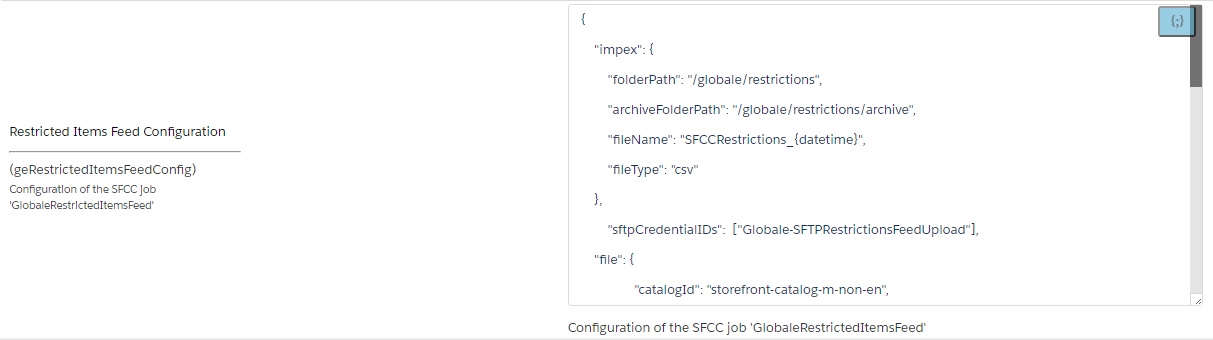
- impex - the fields of this group are used for generating and uploading the catalog files.
- sftp - the fields of this group are used only for uploading the catalog files.
- file - the fields of this group are used only for generating the catalog files.
- deltaMode - the fields of this group are used only for generating the catalog files.
- scenarios - the fields of this group are used to enable restrictions scenarios. There are possible 3 scenarios: brands scenario, categories scenario and product scenario.
- countriesExclusions- the fields of this group contain information about restricted items by brands or categories if are enabled - brands scenario and categories scenario.
| Field Name | Type | Description | Is Mandatory |
|---|---|---|---|
| impex | object | Contains the object with impex configuration. | Yes |
| impex.folderPath | string | Specifies the directory where the generated restriction files are stored. | Yes |
| impex.archiveFolderPath | string | Specifies the directory where the archived restriction files are stored. | No |
| impex.fileName | string | Name of a generated file. | Yes |
| impex.fileType | string | Type of the restriction file. | No |
| sftpCredentialIDs | array | Contains SFCC service credential IDs which are used for uploading restrictions feeds (e.g., [‘Globale-SFTPRestrictionsFeedUpload’]). | Yes |
| file | object | Contains the generated file configuration. | Yes |
| file.catalogId | string | Catalog ID that will be iterated for generating of file with the products information. By default is taken all assigned to site products | No |
| file.separator | string | A separator that is used during the filling of generating file | No |
| file.quote | string | A quote that is used during filling of generating file | No |
| file.locale | string | A SFCC locale that is used during filling of generating file | No |
| deltaMode | object | Contains delta mode configuration | No |
| deltaMode.processOnlyModifiedProducts | boolean | Flag indicating whether to process only modified products. | No |
| deltaMode.productsCountPerOneRun | number | Number of products to process per run. | No |
| deltaMode.productsStartPosition | number | Starting position for processing products. | No |
| scenarios | object | Contains the object with the scenarios configuration. | Yes |
| scenarios.enabledBrandsScenario | boolean | Flag indicating whether the brands scenario is enabled. | Yes. At least one of the scenarios should be enabled(set to true) |
| scenarios.enabledCategoriesScenario | boolean | Flag indicating whether the categories scenario is enabled. | |
| scenarios.enabledProductsScenario | boolean | Flag indicating whether the products scenario is enabled. | |
| countriesExclusions | object | Specifies restricted countries for specific brands or categories | No |
| countriesExclusions.brands | object | Specifies restricted countries for specific brands. | No |
| countriesExclusions.categories | object | Specifies restricted countries for specific categories. | No |
Custom Object ‘GLOBALE_RESTRICTED_ITEMS’
The custom object ‘GLOBALE_RESTRICTED_ITEMS’ contains information/configuration used for handling of “brands/categories/products” scenarios. Should import ‘demo.customobjects.restricteditems.xml’ from the ‘metadata’ folder and then it will be created 3 entities:- brands
- catagories
- products
-
‘Source Handler (
sourceHandler)’ - it is used only for the ‘products’ scenario and allows get the list of country codes that should be restricted. For example: The list of restricted countries is stored in the product custom attribute “restrictedCountries”. The body of ‘Source Handler’ is below. It should return a comma-separated list of country codes as a single string. If all countries are restricted for the products, the value should be “ALL”. (expected format of the return value: “US,GB“ or “ALL“).In case the restrictions are stored on the product level in a different to string format then ‘Source Handler’ must contain the logic that converts the restricted countries list from a specific format to a string with country codes.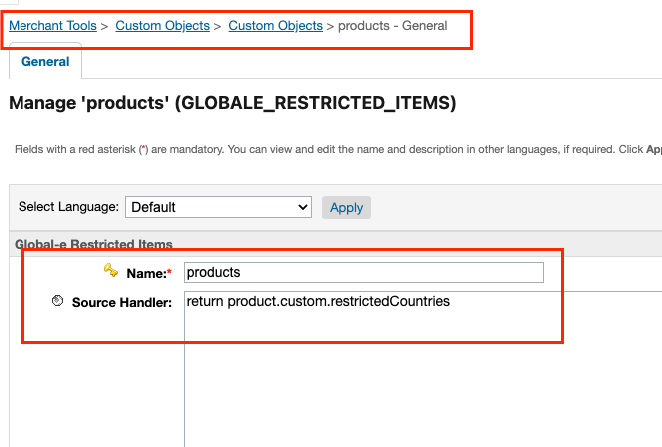
-
Countries Exclusions (
countriesExclusions) - is used for ‘brands’ and ‘categories’ scenarios and contains previous values of restricted countries. There is no need to manually set any values into this custom attribute because the code automatically populates the custom attribute once the category and brand restrictions are applied to the generated file. Example of stored value: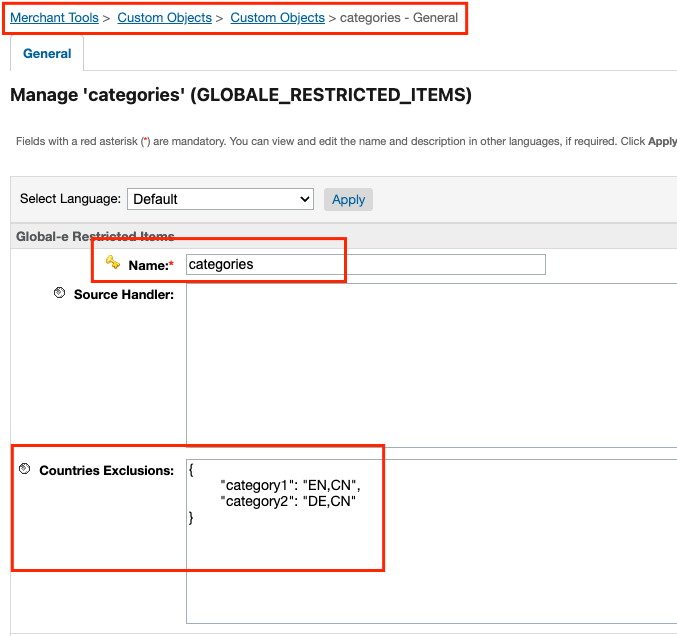
Hidden Metadata
In the “GlobaleRestrictedItemsFeed” job there are a few system objects definitions that are not assigned to any of the groups.- the site preferenceRestricted Items Last Run (geRestrictedItemsFeedLastRun - contains information about last run of the SFCC job ‘GlobaleRestrictedItemsFeed’.
- the product custom attribute Countries Exclusions (geCountriesExclusions)- contains information about previous values of excluded countries for the product. (Expected format of the return value: “US,GB“ or “ALL“)