

Product Price per Currency Feed Tool
If you have a small number of SKUs you can use the Product Price per Currency Feed Tool inside the Global-e admin to retrieve your international prices. The limitation is 1,000 SKUs. The Product Price per Currency Feed enables you to create a feed of your products with their prices in the foreign currencies of your choice. This feed can be used for your marketing needs, whenever international prices are required, for example, Google shopping feed. To prepare your Product Price file:-
From the Global‑e Merchant Portal, go to Merchants > Product Management > Product Price Feed.
The Product Price per Currency Feed screen opens.
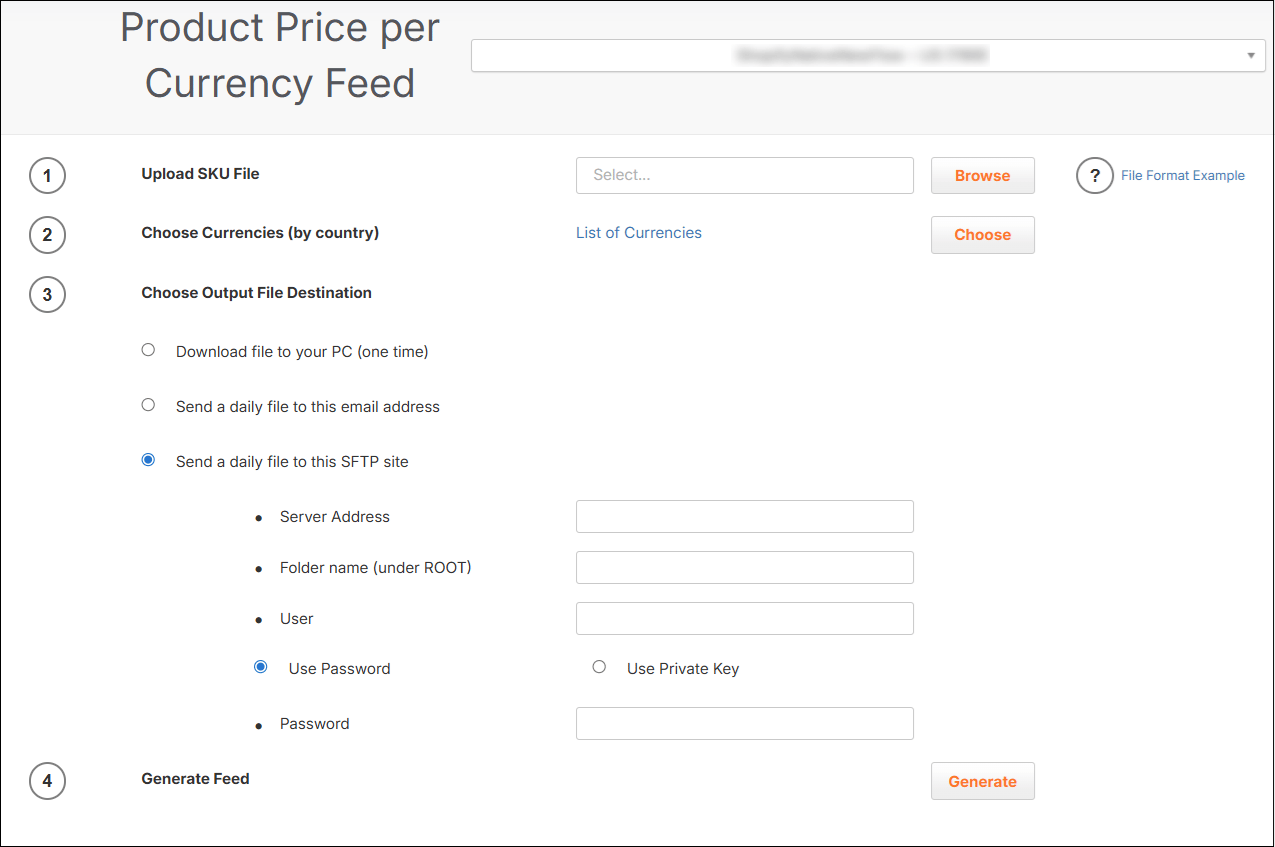
- Download the SKU Sample File by clicking the File Format Example (next to the browse button).
-
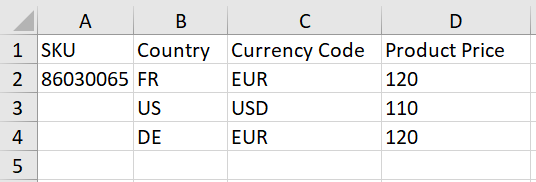
Populate the file with the following values:
- SKU - Your product SKU as it appears in your product catalogue.
- Product Price - Your product price in the original merchant currency (including VAT).
- Price Original Currency - 3-char currency code of your products.
- VAT Rate - The VAT rate in your country that is applicable to your product in per cent (without the % sign).
You can list the values on separate rows or separate the values with commas; the file can contain up to 1000 SKUs. - Save your file in one of the following formats: Excel, CSV, or txt.
Generating Your Feed
To upload and generate your file:- In the Product Price per Currency Feed screen, upload your SKU file: Click Browse to retrieve and select the file you have prepared.
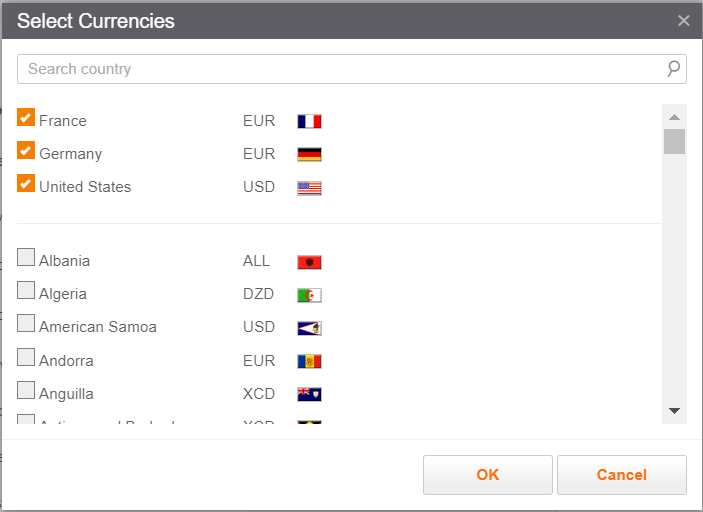
- Choose currencies by country: Click List of Currencies OR Choose, The Select Currencies screen opens.
-
Select one or multiple currencies to use for your product price conversions.
You can choose up to 10 different currencies.
To search for or filter currencies, use the Search country field.
The selected currencies are selected and saved.
To remove a currency, clear the box next to the currency.
-
Choose output file destination, selecting the way you prefer receiving your file containing the converted product prices:
Send a daily file to this email address Enter your email address.The process runs daily, generates the file every 24 hours (with updated prices), and sends the file to the requested email destination you provided. Send a daily file to this SFTP site Enter the server address: sftp.merchantdoamin.com
Enter the folder name.
Enter your username
Select Use Password or Use Private KeyIf you select Use Password, enter a password.If you select Use Private key, click Browse to upload your key file.
The process runs daily, generates the file every 24 hours (with the converted prices), and sends the file to the requested SFTP server destination you provided. -
Click Generate Feed to convert your products to the selected currency prices.
If you have chosen to receive the file daily option, when you next log in to this screen, you can stop the process and generate a new file with different SKUs.
GetCatalogPrices API
If you have more currencies or products to support, use the GetCatalogPrices API. Limitations: 10000 SKUs per requestIntroduction
The GetCatalogPrices API provides merchants with the most updated international prices of their products in different territories operated by Global‑e. These prices can be used for marketing needs (for example, in the Google Shopping Feed or in email marketing campaigns). The recommended frequency of usage of this API call is 1 call per day, as currency rates are updated in the Global-e system once a day. The maximum number of currency results (i.e. product count multiplied by requested countries count) cannot exceed 10,000. It means that if a merchant wishes to get prices of 10 currencies, the maximum number of products that can be sent via this API is 1000. If the API call exceeds this number, a failure message is sent back as a response, and no international prices are retrieved.Merchants implementing the Price feeds API (
GetCatalogPrices API ) to show correct international prices in the Google Shopping feed must ensure that the correct product landing page URL is set to show the price for a country that the feed was generated for.For example, for GEM merchants, the URL should have an additional query string parameter: glCountry, so that the URL for the UK looks like this:<product_page_url>?glCountry=gbIn addition, if the glCountry parameter has been specified, make sure to change the Link of Global‑e CSS by adding the same parameter, so that it looks like this://gepi.global-e.com/proxy/css/<MerchantID>?glCountry=gbGetCatalogPrices API
This API endpoint is used to pull the catalogue prices for international markets. If the merchant wishes it to be fully automated for new products, we need to make sure that they also upload catalogues through SFTP, otherwise, some new products may not exist in the Global-e Database.
- A list of countries - two letters country codes (ISO2), for which international prices product feed is required.
-
A list of products for which international prices product feed is required, with the following details for each product:
- ProductCode (SKU) - ProductCode (SKU) for the product.
- OriginalCurrencyCode - Optional. Currency code for the received product. If left empty, then the default merchant currency will be assumed.
- OriginalSalePrice per product - Price in original currency.
- VATRate - Local VAT rate of the product in the merchant country.
- ProductClassCode - Optional. Product class code used by the merchant to overwrite country coefficient rate.
- IsPriceIncludeVAT- Optional. The default value is True. Indicates whether the price includes the merchant country’s local VAT rate.
Marketing Feeds and Tax/Shipping Rates
When international customers visit your store, the prices are adjusted to their country’s currency. Due to country price coefficient, and/or different VAT policies, the prices your customers see may be different from those shown to customers in other countries with the same currency. Therefore, the feed platforms in use need to be adjusted to support the price localization. Domestic feeds Due to automatic IP redirection, it is recommended that you update your domestic product links to include a country and currency parameter to prevent Google price violations. To do this, add the Global-eglCountry and glCurrency parameters to the product page URL in your generated feeds.
Example:
-
Append the
glCountryandglCurrencyparameters to the product page URL in the feed’s platform. -
For countries where prices are being calculated by Global-e, the prices in the feed must be retrieved from the Global-e
getCatalogPricesAPI.
- Include tax rates per item in your product feed – This is a more complex setup and may require more ongoing maintenance.
-
Set a state-level rate in GMC:
- Choose a specific rate if your products all fall under the same classification.
- Or use the maximum rate for each state to avoid potential mismatches.
- Let Google automatically calculate the tax rate – this is the easiest option, and we’ve seen many brands use it successfully. Google will check that the correct rate is applied when validating your feed.