

- Integration Summary
- Order Placement
- Shipping Method Code
- Checkout Flow
- Discounts
- My Account
- Setting Up Fixed Prices in Magento
- Fixed Prices Support
- MID Support
- Additional Integration Features
Discounts
Global-e supports standard discounts through the Magento platform. With Magento’s Global-e extension, you can offer your customers the following discounts:- Percent of product per discount: Reduces the price of a product by a certain percentage. For example, you can offer a 10% discount on all shirts.
- Fixed Amount Discount: Reduce the price of a product by a set amount. For example, you can offer a $5 discount on all hats.
- Fix the Amount for the whole cart: Offer a discount on the total cart value, such as a 10% discount on orders over $100.
- By X Get Y: A promotional discount that offers customers a free item when they purchase one or more items. For example, you can offer one free pen with the purchase of two pens.
Applying a Discount
Customers can apply a discount code to the shopping cart or to the Global-e Checkout page once they finish shopping. To apply a discount code-
After a customer finishes shopping, they click the shopping cart icon at the top of the page.
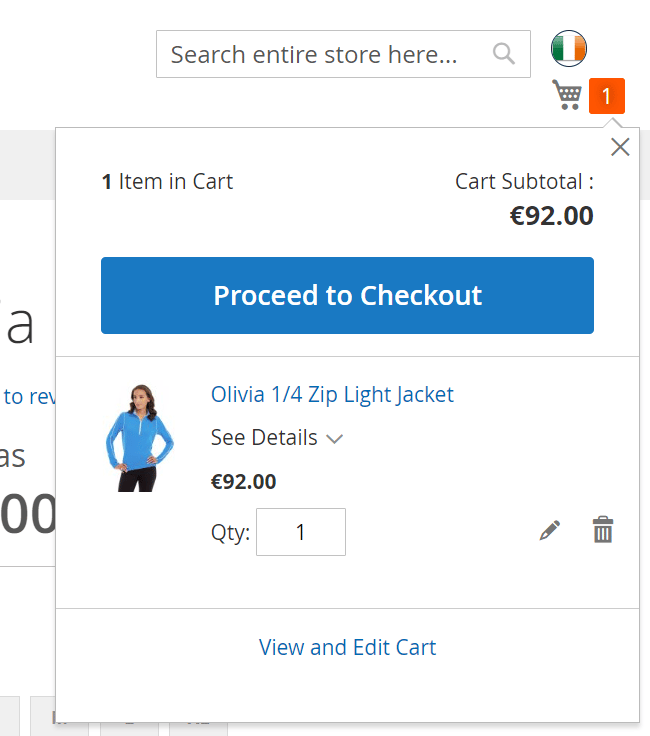
- The customer clicks > Proceed to Checkout. The Checkout page opens.
-
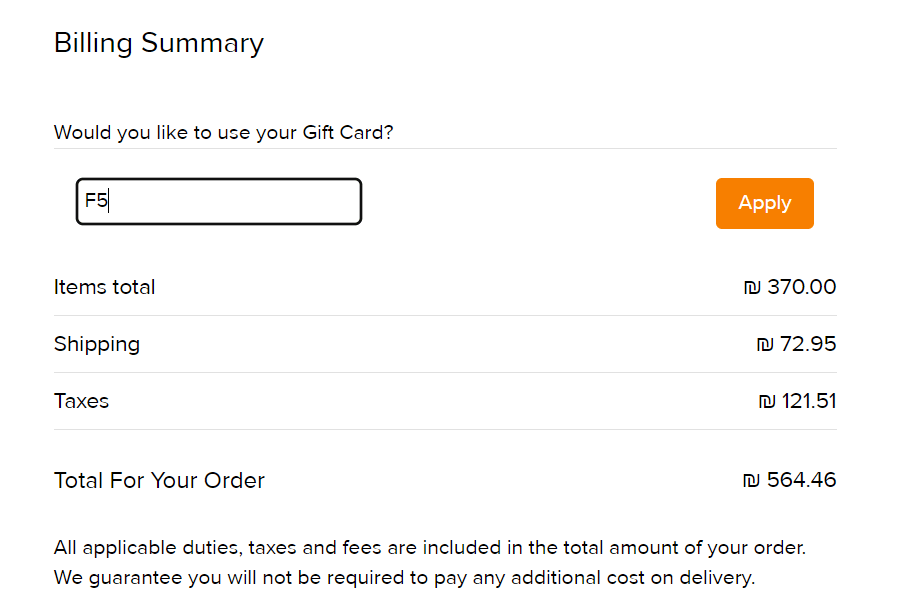
The customer scrolls down to Billing Summary and enters their discount code.
-
The customer clicks Apply.
The discount is subtracted, displaying the new total.
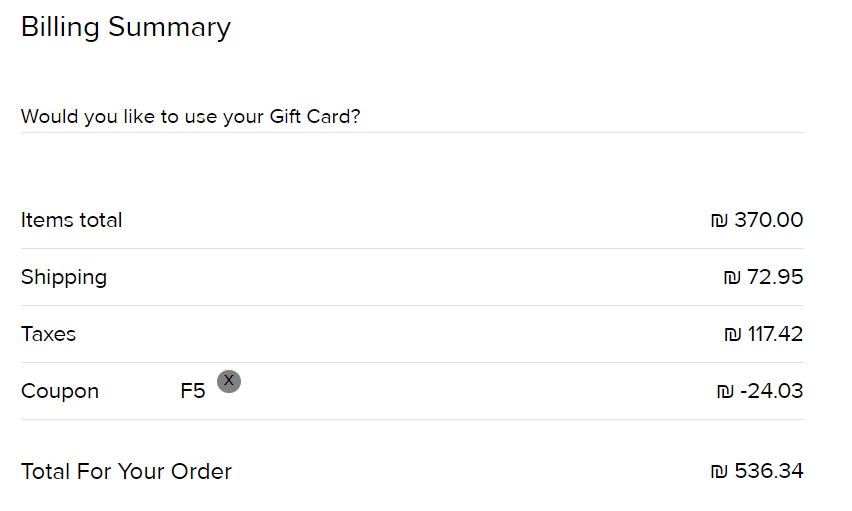
- The customer fills out their payment details and clicks Pay and place order to complete their order.
Viewing Your Discounts
To view or edit existing discounts:-
From the Magento dashboard go to Marketing > Cart Price Rules.
The Cart Price Rules page opens, displaying all existing discounts.
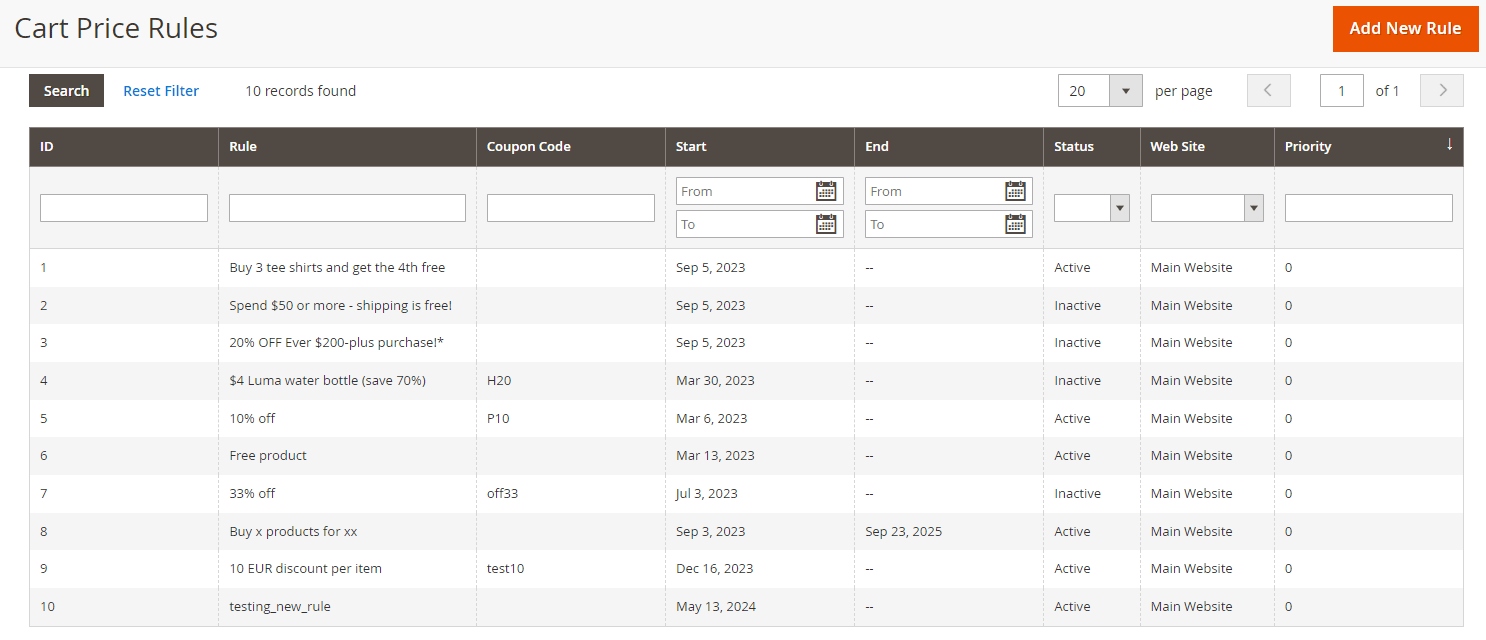
- Click on one of the rules from the list to view or edit the discount details.
My Account
Logged in Customer Details in the Global-e Checkout
When a registered customer logs into the Merchant’s webstore before proceeding to Global-e checkout, the Global-e Magento2 Lite extension transfers securely transfer the customer’s details to Global-e checkout, where shipping and billing information will be pre-populated.Order History
Orders placed by logged-in customers through Global-e are assigned to the corresponding account in your merchant store. You must update your order history pages to show the correct localized prices for your international orders. The prices displayed should show the same currency and prices that the customer paid and sent to your platform via the sendOrderToMerchant request.Setting Up Fixed Prices in Magento
You can set up Fixed Prices automatically or manually to ensure they display correctly on your storefront.Before you begin, contact your Client Success Manager. This feature requires additional configuration on the Global-e side to function correctly.
Setting Up Automatic Fixed Prices
Use this option if you want all countries using the same currency to have the same fixed prices as your Magento catalog.- In Magento Admin, navigate to Stores > Settings > Configuration > Services > Global-e Crossborder > Products.
-
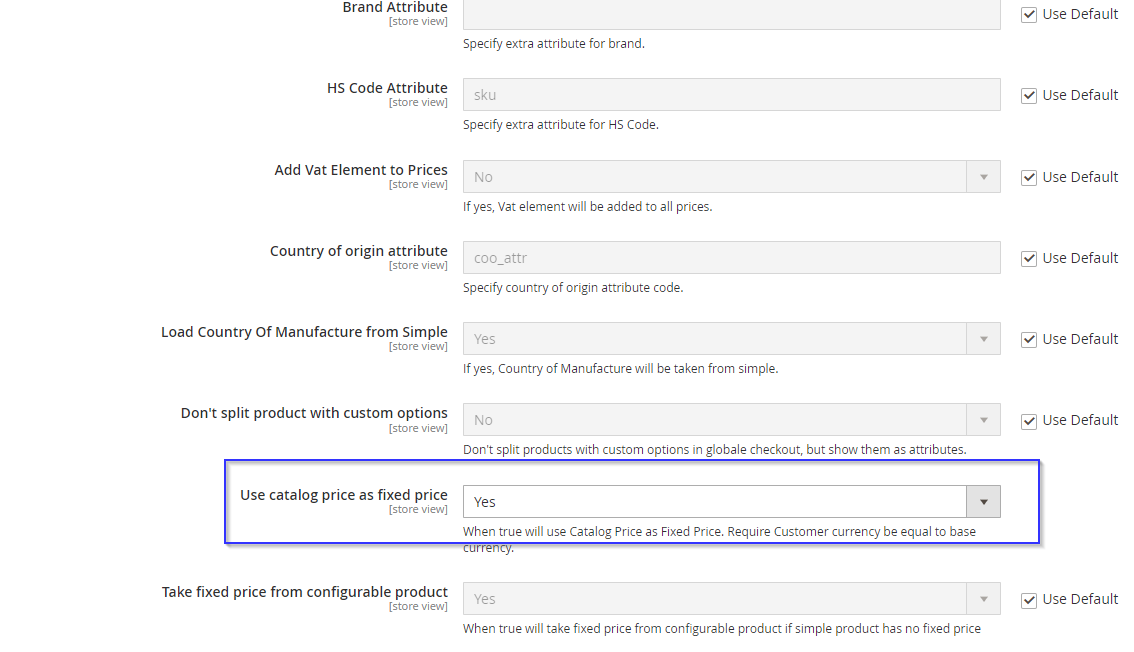
Select the option to use fixed prices from your catalog.
This setting applies
"isFixedPrice": "true"for all countries under that specific webstore.
Uploading Fixed Prices Manually
Use this method if you want full control over which countries and currencies have fixed prices. This method involves uploading a CSV file with specific details.- In Magento Admin, navigate to Catalog > Global-E Fixed Prices > Import/Export Prices.
-
Upload a CSV file containing the following fields:
Field Description product_codeThe Magento product SKU. currency_codeCurrency (e.g., USD). country_codeCountry code (e.g., US). priceFixed price value. special_price(optional)Discounted price (if applicable). date_from(optional)Start date for the fixed price, in the format YYYY-MM-DD. date_to(optional)End date for the fixed price, in the format YYYY-MM-DD.
Showing Fixed Prices on Your Storefront
To ensure fixed prices appear correctly on your product pages, Global-e requires a specialdata-fp attribute to be included in the price display.
Configuring Traditional (Non-Headless) Magento Stores
- Navigate to Stores > Settings > Configuration > Services > Global-e Crossborder > Products.
- Select the setting to automatically add the
data-fpattribute to your storefront.
Configuring Headless Magento Stores
Headless setups require manual configuration of thedata-fp attribute for each product.
- Add a
data-fpattribute to each product’s price HTML element, containing a JSON object of country-specific prices. - Reminder: Include FP data for both parent (configurable) and child (simple) products.
Configuring Fixed Prices for Swatches
If you sell product variations (such as colors or sizes) under the same SKU and need different fixed prices for each, Global-e supports swatch-specific fixed pricing.- In Magento Admin, navigate to Stores > Settings > Configuration > Services > Global-e Crossborder > Products.
- Adjust your swatch pricing as needed. For more information, refer to: Magento Product Swatches – Adobe Commerce Docs
Disabling Fixed Prices for a Country
You can disable Fixed Prices for a specific country if needed.- Ask your Global-e contact to turn off fixed prices for the country in the Global-e country settings.
- In Magento Admin, navigate to Stores > Settings > Configuration > Services > Global-e Crossborder > Products.
- Locate the webstore for that country and disable the Fixed Price setting.
-
Review your webstore setup and select one of the following:
Option Description Option A: Keep the country in the same webstore Ensure product prices are pulled from the base currency of that webstore (for example, if the base is USD, prices for the US will reflect catalog pricing). Option B: Move the country to a different webstore Update the routing settings in Global-e to direct traffic from that country to your ROW (Rest of World) webstore.
Fixed Prices Support
In addition to sophisticated dynamic price localisation capabilities across multiple target countries and currencies (such as country uplift coefficients, VAT handling rules, marketing rounding rules, etc.), the Global-e Magento2 Lite extension supports fixed prices per country functionality.Fixed Price from Magento Catalogue
This can be achieved by defining separate stores per target country’s currency and configuring the respective countries as “fixed price” on the Global-e side. For example, if a store in Magento has a base currency EUR, it can be used as a fixed price for all (or some) countries having EUR as a default currency. The fixed price will be used for all products. Configuration:- The country should be defined to support fixed prices in the Global-e back office
- Magento store should be updated with prices including VAT
- Global-e extensions should be configured on the store level to support fixed prices from the catalogue (see screenshot below)
Fixed Prices Using Pricebook Upload (CSV)
It’s possible to manage fixed prices by uploading the Pricebook CSV via the interface provided by the Global-e Magento2 Lite extension in the Magento admin: Catalogue-> Global-e Fixed prices. To display fixed prices on your site, make sure to enable the Global-e module setting Add data-fp to product attribute automatically. This adds data-fp attributes to products on HP/PLP/PDP/Search.Enabling the Global-e Module
You must enable the following Global-e modules in order to display fixed prices on your site.- Globale_BrowsingLite
- Globale_OrderLite
- <module-list> is a space-delimited list of modules to enable or disable. If any module name contains special characters, enclose the name in either single or double quotes.
- —all to enable or disable all modules at the same time.
- -f or —force to force a module to be enabled or disabled despite dependencies. Before you use this option, see About enabling and disabling modules.
- -c or —clear-static-content cleans generated static view files.
Upload Pricebook
To upload the Pricebook into Magento Admin, please proceed to Catalogue -> Global-E Fixed Prices -> Import/Export prices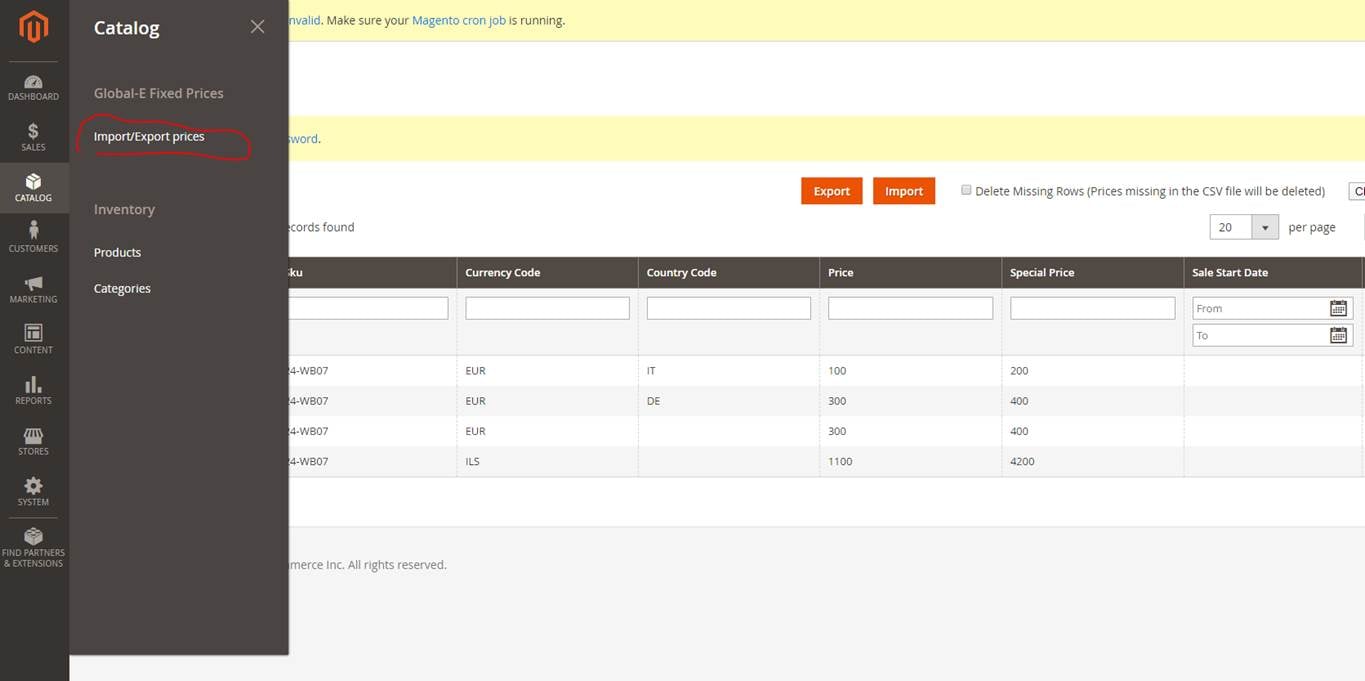
| Parameter | Description | Example Format | State |
|---|---|---|---|
product_code | Product SKU from Magento | Mandatory | |
country_code | ISO2 letters country | IE | Optional |
currency_code | ISO3 currency mode | EUR | Mandatory |
price | Fixed price in the specified currency | 111.0000 | Mandatory |
special_price | Fixed price for the special price | 111.0000 | Optional |
date_from | The date when the special price is applied | Y-m-d``Y-m-d\TH:i:sP | Optional |
date_to | The date until the special price is applied | Y-m-d``Y-m-d\TH:i:sP | Optional |
MID Support
U.S. Customs requires the Manufacturer’s Identification Code (MID) for certain shipments to the United States. What is Manufacturer’s Identification Manufacturer’s Identification (MID) includes details of the manufacturer of the goods which is required in some cases by the US customs. MID includes the full business name and postal address of the manufacturing supplier as well as a specific code based on the manufacturer’s name and country. MID is required for:- Any order shipped to the USA, no matter the value, that includes at least one product manufactured in China/HK.
- Any shipment to the USA with a declarative value to customs higher than $2,500 (regardless of the Country Of Origin of the products).
- MIDCode: A unique identifier generated from the manufacturer’s name and location.
- MIDAddress: The full postal address of the manufacturing supplier.
- MIDName: The complete business name of the manufacturing supplier.
- Collect Supplier Information: Ensure your manufacturing supplier has provided their complete business name and postal address. This information is essential for defining the MID code.
-
Generate the MID Code
- Identify the two-letter ISO country code for the supplier’s country (e.g., GB for the United Kingdom, NL for the Netherlands, DE for Germany).
- Use the first three letters of the supplier’s first and second names (if applicable).
- Extract the highest numerical digits (up to four) from the address line.
- Use the first three letters of the supplier’s city name.
- MIDAddress: 92 Alice Springs Road, Melbourne, Victoria, Australia, 3001
- MIDName: Ozrock
-
Create MID product attributes in Magento.
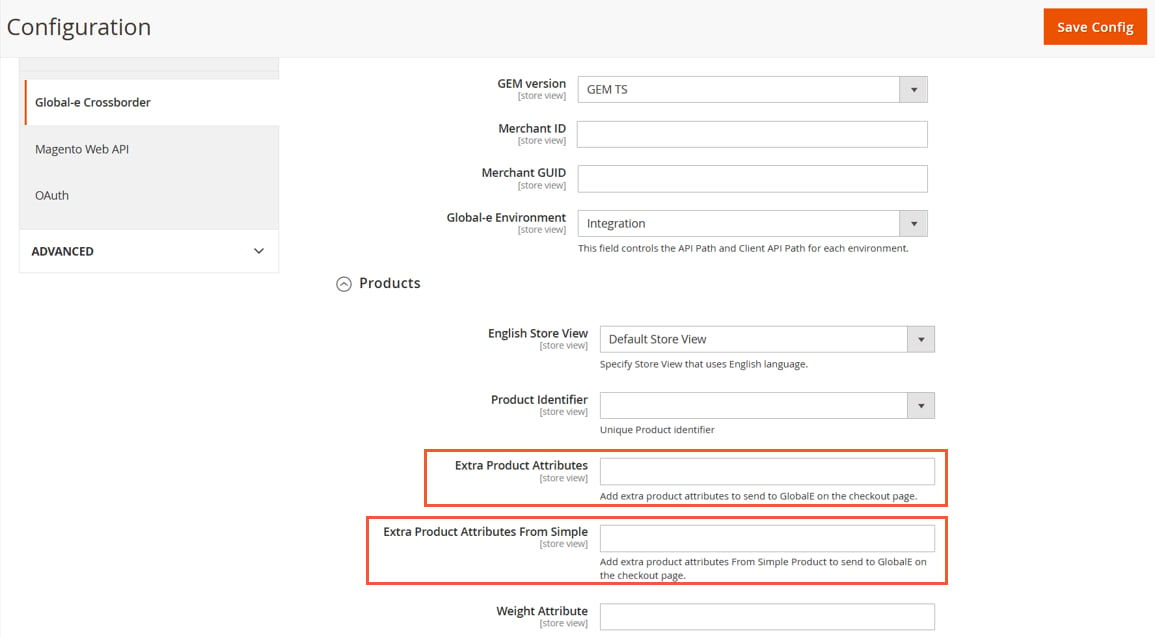
- In Magento Admin, go to Stores > Configuration > Services > Global-e Crossborder > Products.
-
Add the following 3 attributes to either Extra Product Attributes or Extra Product Attributes From Simple.
Important! Be sure to add these attributes exactly as they are spelled here:
midcodemidnamemidaddress
- Update your products with data for each MID attribute.
Additional Integration Features
Conversion Tracking for Global-e Orders
The Global-e confirmation page comes from the Global-e platform, not the Magento confirmation page. To allow merchants to implement conversion tracking for Global-e orders, there are JavaScript events that will be sent from the Global-e checkout iframe to the container page. TheOnCheckoutStepLoaded event is fired when the Global-e checkout is open (in this case no additional data is provided) and also when the confirmation page is showing. In the 2nd case, the dataobject with all the order details will be provided. This object can be used by merchants to report events to any platform (GA, GTM, Facebook etc).
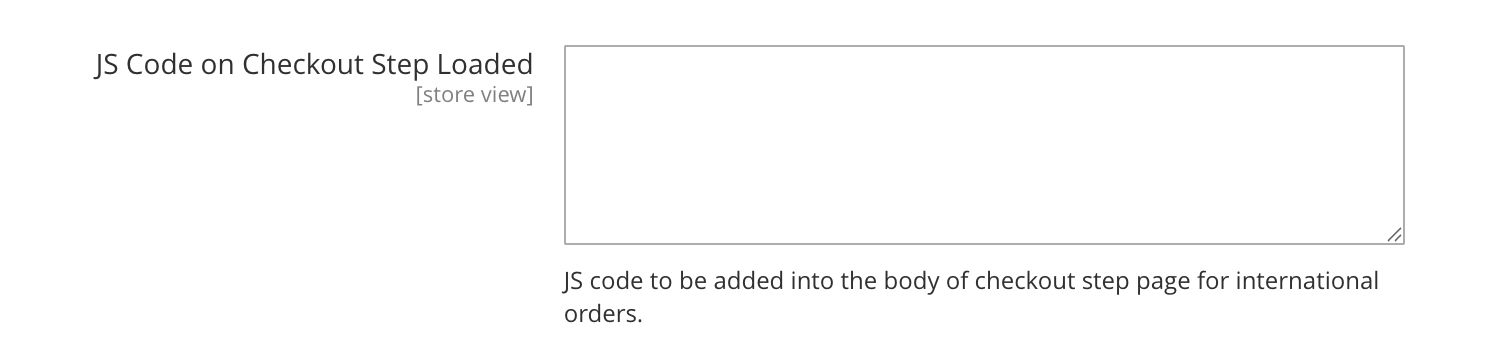
To simplify the implementation of conversion tracking, the Global-e Magento2 Lite extension provides 2 configuration fields in the Magento admin panel. Merchants can use these fields to add tracking code (in the form of executable JavaScript) to report the transaction.
The advanced analytics feature allows merchants to track customer activities inside the checkout form and ??? will be fired on every change inside the form. This can be particularly useful in capturing customer e-mail addresses and implementing abandoned checkout integration. More details about this event can be found here.
Conversion Tracking
- Global-e checkout is opened in an iframe and this iframe is then reloaded to display the confirmation page to the customer.
- In order to allow merchant to perform conversion tracking and implement goals in the GA, the Global-e iframe will fire JavaScript events to the container page.
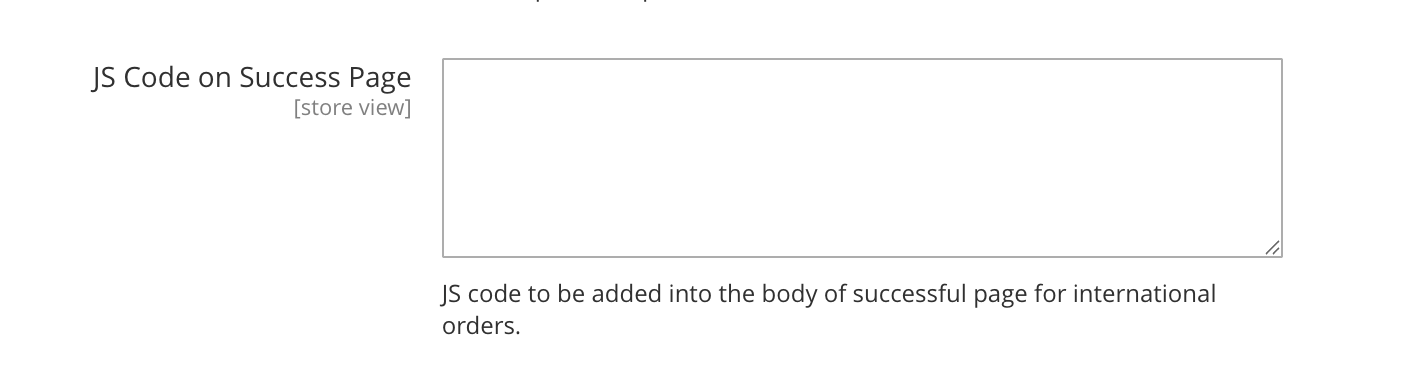
- As part of the extension, Global-e provides a configuration field in Magento Admin (Stores > Configurations > Services > Global-E Integration Lite > Checkout > JS Code on Success Page) where this event handler can be added.
Pre-Order and Backorder (Magento)
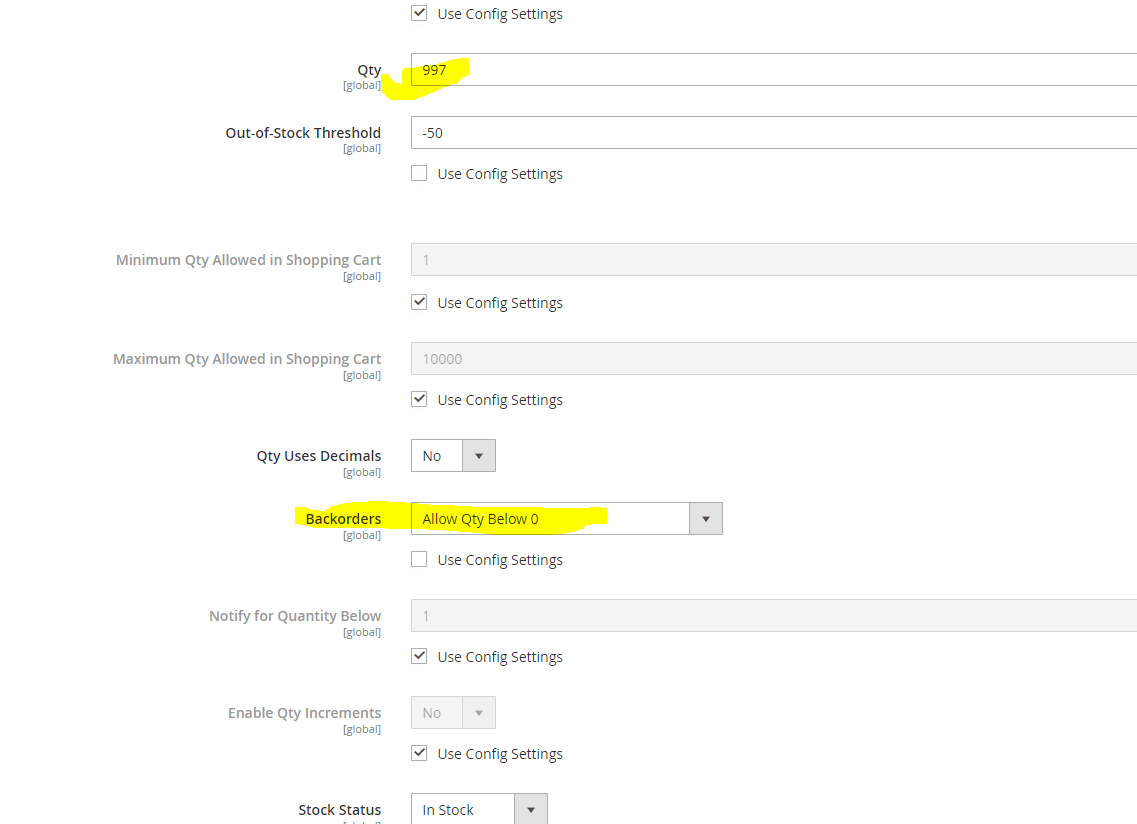
The Global-e Extension for Magento features a logic that determines whether an order should be marked as Backordered during the GetCart request process. This decision is based on specific criteria:- The item is marked as eligible for backorders in Magento (“
backOrders” is enabled). - The item’s quantity is less than or equal to 0.
IsBackOrdered = true.
Additionally, a BackOrderMessage is included in the MetaData.
By default, this message is set to “pre-order”.
However, you can customize this message can be customized through the configuration settings of the Global‑e module within the Magento Admin panel.
Pre-Order and Backorder
To inform Global-e that a product is on pre-order or backorder, include the following fields in your getCheckoutCartInfo response:IsBackOrdered: Set to true for products ordered as backorders or pre-orders.BackOrderDate: Provide the estimated stock date for backordered or pre-ordered items in the formatyyyy-MM-dd HH:mm:ss.