

Storefront Modifications (Liquid Storefronts)
Step 1. Use Shopify’s Local Prices
Shopify localises prices rendered via the liquid template. See https://help.shopify.com/en/manual/markets/pricing/currency-formatting. Explicit Price Formatting To prevent shopper confusion and increase international order conversion, use explicit price formatting where appropriate, according to Shopify recommendations. This means displaying the currency code in addition to the currency symbol on collections pages, PDPs, search results, and order subtotals on the cart and mini-cart. To achieve this, use the money_with_currency filter. You may choose to display the currency code only for ambiguous currency symbols such as “$”.
Example:
Step 2. Use Shopify’s Local-Aware URL (Optional)
You may choose to use subfolders, int’l subdomains or int’l TLDs on your storefront. If you choose to use this feature, you will need to ensure your link structure remains intact during the browsing session to prevent issues with links or when opening the cart. To make sure that Shopify preserves the country selected by the customer:- Avoid using absolute URLs
- Replace
/cartwith{{ routes.cart_url }}
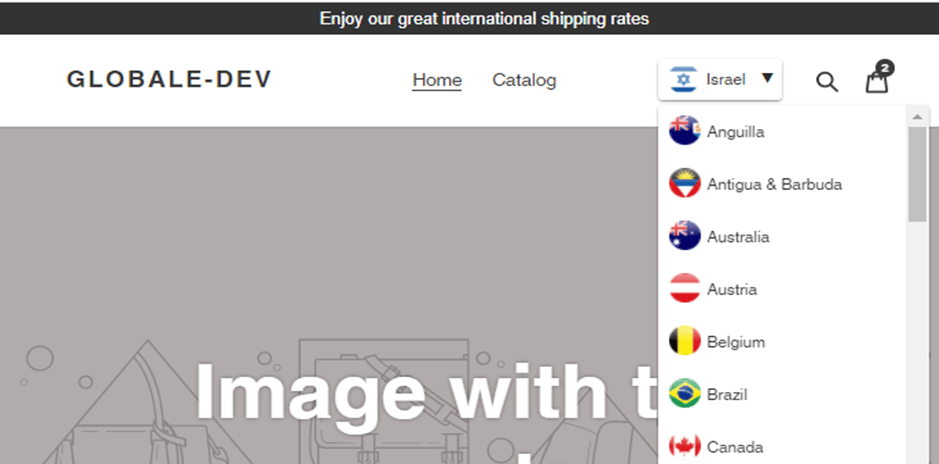
Step 3. Add a Country Selector
There are two options for implementing a country selector:- There are 3rd party apps on the Shopify app store that can add a country selector to your store automatically.
- You can build a custom country selector if you want to have more control over the look and feel. Shopify provides an example code for building a custom selector on their docs site: https://shopify.dev/themes/internationalization/multiple-currencies-languages
Step 4. Adjust the Appearance of Duties and Taxes
Order Details page
If you are using Legacy Customer Accounts only – to display the correct duties amount on the order details page, use the following code snippet.Step 5. Optional: Hide Website Elements in Shopify
You may want to hide certain elements on your storefront that are not relevant to international shoppers. Examples include free domestic shipping banners, domestic payment methods (e.g., Afterpay), and express checkout buttons on the PDP and other locations. You can hide these elements from displaying when the shopper chooses a Global-e supported country by adding certain CSS classes to those elements. ge-hide-display-none: Elements with the classge-hide-display-none are hidden and do not take up space on the page.
ge-hide: Elements with the class ge-hide are hidden from view.
Example:
Step 6. Gift Card Tagging
To prevent gift cards from receiving an inflated price due to country coefficients, you must add the product tag pc-glbe-giftcard to all your gift card products. Make sure to add this tag in both the sandbox and production environments. Please let your Global-e project team or CSM know when this is done so Global-e may complete the configuration on our side.Step 7. Account Landing Page Fix
For liquid storefronts, to resolve a known Shopify issue with the account landing page displaying order totals using the currency of the session instead of the currency the order was placed in, adjust the display of the order total to output without currency, and append the order currency separately. Before:{{ order.total_price | money_with_currency }}
After: {{ order.total_price | money_without_currency }} {{ order.currency }}
Step 8. Gifts With Purchase and Free Sample Support
To allow gifts with purchase and free samples to have international duties and taxes calculated correctly and prevent other downstream issues, there are two approaches:- The free products must be assigned a non-zero price and have a
100%discount applied to them. - Alternatively, the free product can have a price of
zero ("0")if the configured “Cost per item” is non-zero. This method requires additional configuration from Global-e so please reach out to your Global-e project manager or CSM to enable it.