

This article describes how a shopper or customer support representative uses the Merchant Portal to search for a return that has already been started. For information about starting a return and creating an RMA/return shipping documents, see Returns Portal.
-
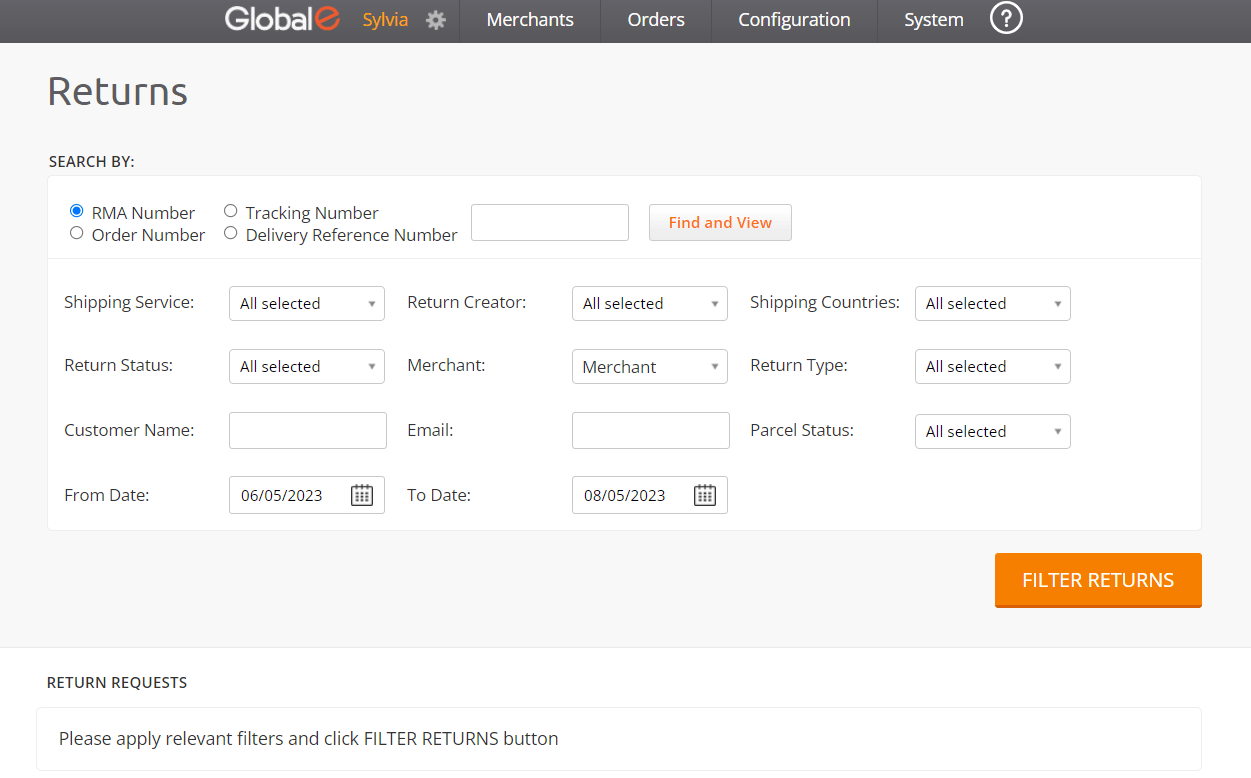
From the Merchant Portal, go to Orders > Returns.
-
You can search for returns by setting the following filters.
-
Select an option:
- RMA Number (selected by default)
- Tracking Number (shipper’s tracking number)
- Order Number (Global‑e order ID - beginning with GE)
- Delivery Reference Number
- You can also set additional search filters (see details in the Additional Search Filters section further below).
- To search for a specific return, enter the relevant return number in the search field, then click Find and View.
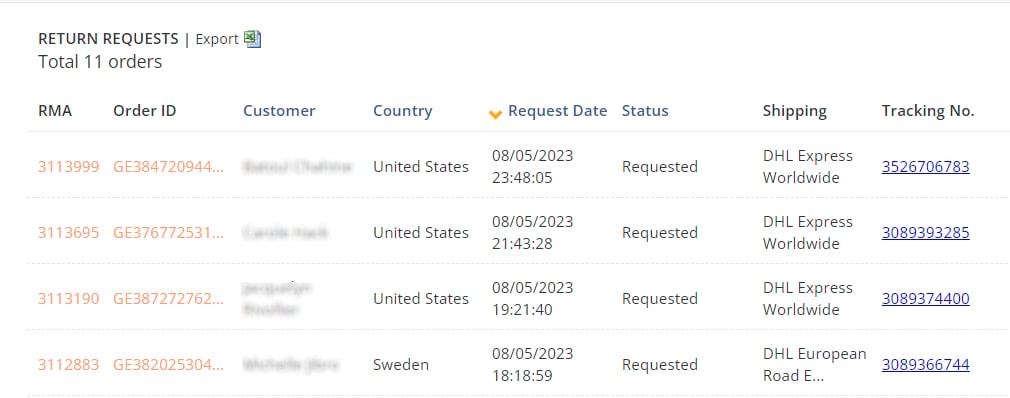
- To list all returns based on the default RMA selection or on your selection, click Filter Returns.
-
Select an option:
| Search by | Description |
|---|---|
| Shipping Service | Search by shipping service |
| Return Status | Search by return status: Approved Arrived at Destination Authorized Closed Dispatched by customer Dispatch by Returns operator Dispatched from hub to merchant Received by Global‑e Received by Returns operator Received in Hub Refused Requested |
| Customer name | Search by the name of the customer who performed the return |
| Return creator | Search by the person who created the return: Customer Global‑e Representative Merchant Representative |
| Merchant | Search by merchant name (only relevant for merchants with multiple brands managed by the same user) |
| Search by customer email | |
| From Date / To Date | Search for returns within a date range: Select the From Date and To Date from the calendars |
| Shipping Countries | Search by shipping country |
| Return Type | Search by return type: Consolidated return Local Prepaid Local Prepaid Courier Prepaid Standard Undefined |