

- Add, edit, and display return reasons in the Admin Dashboard
- Add follow-up questions (including mandatory questions and media requests)
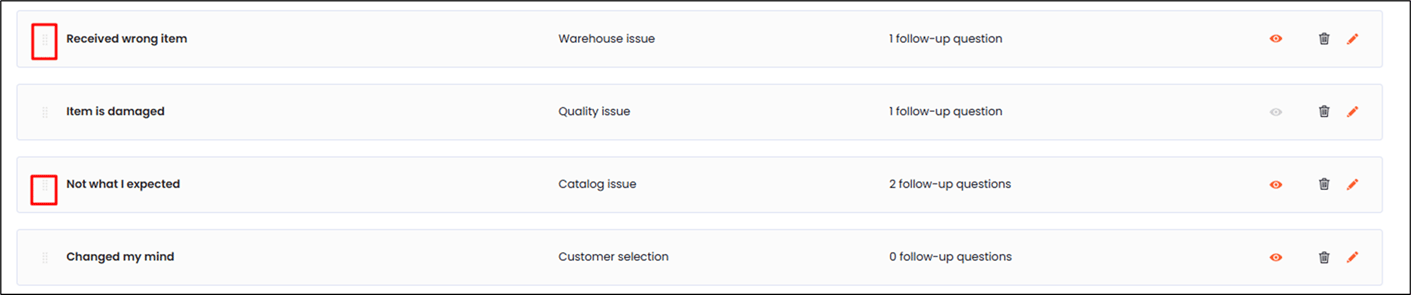
- Reorder reasons to control how they appear in the new return portal
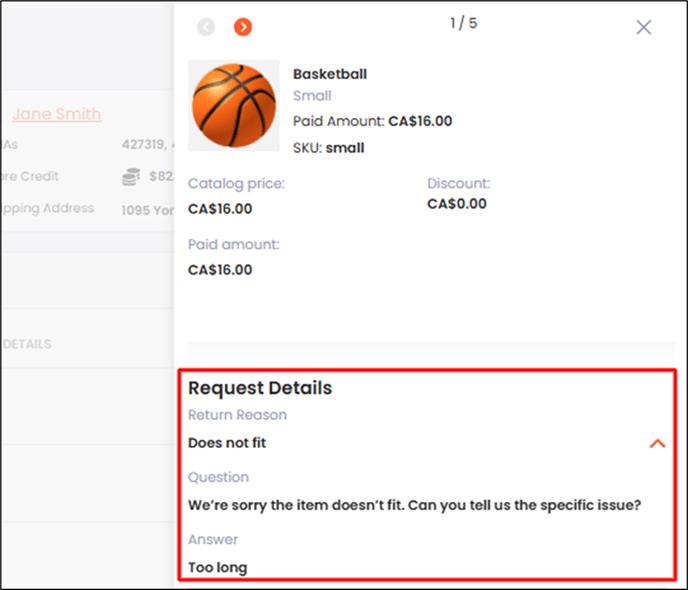
- Find return reasons on an RMA and analyze return reason trends in Analytics or exports
- Decide which reasons should be customer-facing (vs. internal-only).
- Provide details (e.g., Damaged > request photo).
- Keep reason names short and customer-friendly; use follow-up questions for specifics.
- Navigate to Settings > Return Reasons.
-
Do one of the following:
- Create a return reason- click ADD REASON.
- Edit a return reason - click the pencil icon next to an existing reason to edit it.
- Enable Display reason to make the reason visible to customers in the new return portal.
- Edit the reason’s display name.
- Set a return reason category.
- Click the saveicon in the top right hand corner of the page.
- Click the edit icon corresponding to a return reason.
- In the Return Reasons editor, click ADD QUESTION.
- Click the pencilicon next to the follow-up question to configure it.
- Toggle Display question so customers see it in the new return portal.
- (Optional) Toggle Mandatory question to require an answer.
- Edit the Internal name (for internal reference/reporting).
-
Choose an Answer type:
- Free text
- Media text
- Multiple choice
- Numerical stepper
- Yes/No
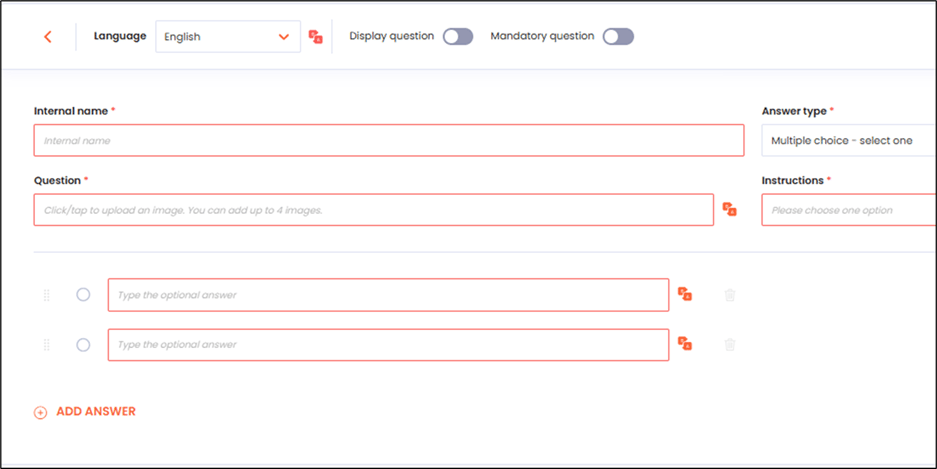
- Enter or edit the customer-facing Questiontext.
- Enter instructions in the Instructions field using the plus and minus buttons to set the quantity.These numbers set what the Customer should provide.
-
Configure any additional settings required by the selected answer type, such as media type or multiple-choice options.
The following limits apply to the Media Request:
- Customers can upload up to four images or videos at a time
- Supported image types: JPG, JPEG, PNG, HEIF
- Click the saveicon in the top right corner of the page.
- Navigate to Settings > Return Reasons.
- Drag and drop return reasons into your preferred order.
-
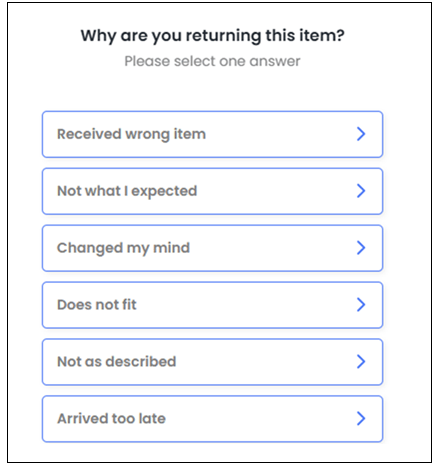
Verify the return in the New Returns Portal:
- Start a return for an order in the new return portal.
- Select an item to return.
- Confirm the customer sees your enabled reasons (those with Display reason turned on).
-
Select a reason that has follow-up questions and confirm:
- Questions appear after selecting the reason
- Mandatory questions must be completed before continuing
-
Media requests allow uploads (and video uploads only if the add-on is enabled)
-
Verify on the RMA in the admin dashboard
- Navigate to Manage Returns and open an RMA.
-
In the item Details area, check the Details section (right side) to see the selected return reason next to each returned item.
| Question | Answer |
|---|---|
| Reason doesn’t appear in the new return portal | Confirm Display reason is ON and you clicked the save icon. |
| Follow-up question not showing | Confirm Display question is ON and saved. |
| Customer can skip an answer you need. | Toggle Mandatory question ON. |
| Customers can’t upload videos. | Video uploads require enabling the Video Upload add-on (images still work without it). |
| Reason order in the portal isn’t what you expect. | Reorder reasons via drag-and-drop in Settings > Return Reasons. |
| Question | Answer |
|---|---|
| What are the default return reasons? | The platform includes a built-in set of commonly used default return reasons you can use as-is or customize. |
| How many return reasons can I add? | There is no limit. |
| How many follow-up questions can I add per reason? | There is no limit. |
| How do I change the order shown in the new return portal? | Reorder items in Settings > Return Reasons (drag-and-drop). The portal follows that order for reasons (and follow-up questions). |
| What’s the upload limit for media requests? | Up to 4 files at a time, 140MB per file. Supported images: JPG, JPEG, PNG, HEIF. Videos require the Video Upload add-on. |
| Do return reasons appear on order notes in Shopify? | Return reasons are included in the order’s notes once the item has been restocked, provided Restock by is set to Refund $0 and restock. |