> ## Documentation Index
> Fetch the complete documentation index at: https://pro-docs.bglobale.com/llms.txt
> Use this file to discover all available pages before exploring further.
# Payments
The Shopify Payments feature is a quick search tool that lets you quickly locate specific payment transactions by searching with identifiers such as:
* **Checkout ID** — The unique ID associated with a Shopify checkout session.
* **Payment Attempt** — Used to search for individual attempts of processing a payment.
* **PSP Reference** — The reference number provided by the Payment Service Provider (PSP).
This helps support teams, finance, or operations quickly track down and review the status/details of a payment without needing to go through the full **Advanced Search** filters.
The following figure shows the Shopify Payments results screen:
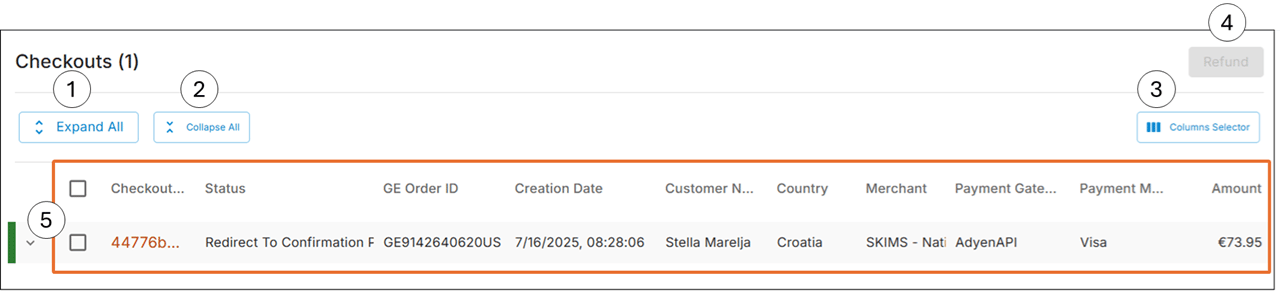 The following table describes the Shopify Payments results elements:
| No. | Element | Description |
| --- | ---------------- | ------------------------------------------------------------------ |
| 1 | Expand All | Lets you expand all search results simultaneously. |
| 2 | Collapse All | Lets you collapse all search results simultaneously. |
| 3 | Columns Selector | Lets you select which columns to show in the search results table. |
| 4 | Refund | Lets you issue a refund. |
| 5 | Search result | Lets you see basic information related to the searched item. |
## Accessing Shopify Payments
1. Navigate to Payments > Shopify Payments from the top menu.
2. Do one of the following:
* Run a quick search
* [Run an advanced search](/payments--shopify-payments-#running-an-advanced-search)
## Running a Quick Search
1. Select one of the following:
* Checkout ID
* Payment Attempt
* PSP Reference
You can find the values for the search parameters above here:
* **Checkout ID** - *Orders > Logs > Technical Logs (Checkoutid)*
* **Payment attempt** - Shopify Payment search results table (Payment Attempt GUID)
* **PSP reference** - *Orders > Payments & FX > PSP Reference*
2. Based on your selection in *Step 1*, insert a search parameter and click **Search**.
The search results table is displayed:
The following table describes the Shopify Payments results elements:
| No. | Element | Description |
| --- | ---------------- | ------------------------------------------------------------------ |
| 1 | Expand All | Lets you expand all search results simultaneously. |
| 2 | Collapse All | Lets you collapse all search results simultaneously. |
| 3 | Columns Selector | Lets you select which columns to show in the search results table. |
| 4 | Refund | Lets you issue a refund. |
| 5 | Search result | Lets you see basic information related to the searched item. |
## Accessing Shopify Payments
1. Navigate to Payments > Shopify Payments from the top menu.
2. Do one of the following:
* Run a quick search
* [Run an advanced search](/payments--shopify-payments-#running-an-advanced-search)
## Running a Quick Search
1. Select one of the following:
* Checkout ID
* Payment Attempt
* PSP Reference
You can find the values for the search parameters above here:
* **Checkout ID** - *Orders > Logs > Technical Logs (Checkoutid)*
* **Payment attempt** - Shopify Payment search results table (Payment Attempt GUID)
* **PSP reference** - *Orders > Payments & FX > PSP Reference*
2. Based on your selection in *Step 1*, insert a search parameter and click **Search**.
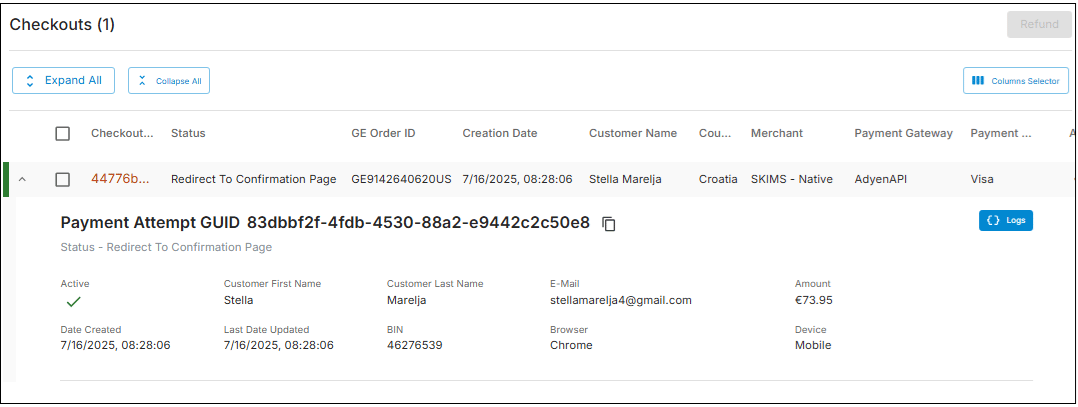
The search results table is displayed:
 ## Running an Advanced Search
If needed, you can run an advanced search.
1. Click **Advanced search**.
2. Select an integration type, such as **Adidas**or **Classic**.
3. Fill out the required **Customer**or **Payment Attempts** fields and click **Search**.
If you need to issue a refund, see [Issuing a Refund](/payments--shopify-payments-#issuing-a-refund-464603).
## Issuing a Refund
You can issue a refund on a Shopify payment if needed.
1. Run a quick or advanced search.
2. Select a checkout row.
3. Click **Refund**.
4. When the **Confirm Refund** message is displayed, click **Ok**.The **Refund Request Status** screen is displayed.
5. (Optional) Click **Export** and select **Download as CSV** or **Print**.
## Running an Advanced Search
If needed, you can run an advanced search.
1. Click **Advanced search**.
2. Select an integration type, such as **Adidas**or **Classic**.
3. Fill out the required **Customer**or **Payment Attempts** fields and click **Search**.
If you need to issue a refund, see [Issuing a Refund](/payments--shopify-payments-#issuing-a-refund-464603).
## Issuing a Refund
You can issue a refund on a Shopify payment if needed.
1. Run a quick or advanced search.
2. Select a checkout row.
3. Click **Refund**.
4. When the **Confirm Refund** message is displayed, click **Ok**.The **Refund Request Status** screen is displayed.
5. (Optional) Click **Export** and select **Download as CSV** or **Print**.