> ## Documentation Index
> Fetch the complete documentation index at: https://pro-docs.bglobale.com/llms.txt
> Use this file to discover all available pages before exploring further.
# Installation
## Prerequisites
* An administrator account for your Platform
* A Global‑e Merchant account
* Your Global-e Merchant ID and Merchant GUID (provided to you by Global-e)
To integrate your BigCommerce Store with Global-e, install and configure the Global-e Application.
**To install the Global-e Application:**
1. Click the relevant link:
* [Sandbox/Development](https://apps.bigcommerce.com/details/42496)
* [Production](https://www.bigcommerce.com/apps/global-e)
Alternatively, go to the BigCommerce store, and find and open the Global-e app. Note that only the production app is available at the Big Commerce store.
2. Click **Get this app**.
The Global-e Account Info screen is displayed, prompting you to fill in your merchant information.
This information is provided to you when you sign up with Global-e.
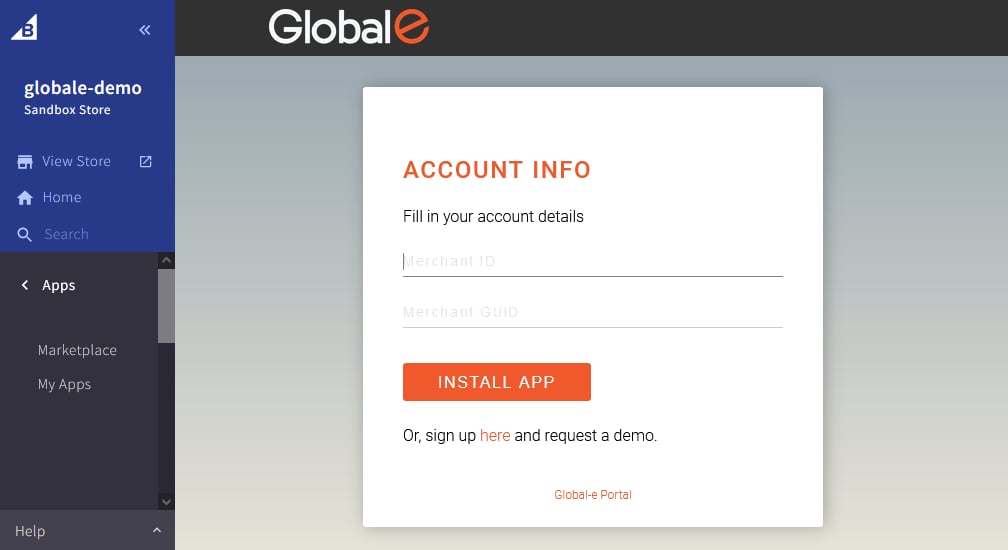 3. In the **ACCOUNT INFO**, fill in:
| Merchant ID | Your Merchant Account ID, as recorded in the Global-e system. Example: 899 |
| ------------- | ---------------------------------------------------------------------------------------------------------------- |
| Merchant GUID | The private key of your Merchant Account ID in the Global-e system.Example: F978DFEB-FF8C-4EE1-BFDA-68FB1B78E217 |
This information is provided to you when you sign up with Global-e.
4. Click **INSTALL APP**.
5. The Global-e Application is now installed.
After installation, configure the app to complete the integration.
3. In the **ACCOUNT INFO**, fill in:
| Merchant ID | Your Merchant Account ID, as recorded in the Global-e system. Example: 899 |
| ------------- | ---------------------------------------------------------------------------------------------------------------- |
| Merchant GUID | The private key of your Merchant Account ID in the Global-e system.Example: F978DFEB-FF8C-4EE1-BFDA-68FB1B78E217 |
This information is provided to you when you sign up with Global-e.
4. Click **INSTALL APP**.
5. The Global-e Application is now installed.
After installation, configure the app to complete the integration.