> ## Documentation Index
> Fetch the complete documentation index at: https://pro-docs.bglobale.com/llms.txt
> Use this file to discover all available pages before exploring further.
# Gift Cards
## Overview
Global‑e cartridges support:
* Purchasing Gift Cards as regular products
* Using Gift Cards on Global-e checkout
The cartridges contain needed functionality and demo implementation based on using SFCC custom objects.
## Purchase of Gift Cards
Gift Cards can be added to the basket and purchased like any other regular product.
Here is how to configure a gift card:
1. In SFCC Business Manager, create a new product.
2. For this product, check the product custom attribute **Is Globale Gift Card** which identifies the product as a Gift Card.
 The product can be configured as a single or as a master with variation products that will be used as different amounts of Gift Card.
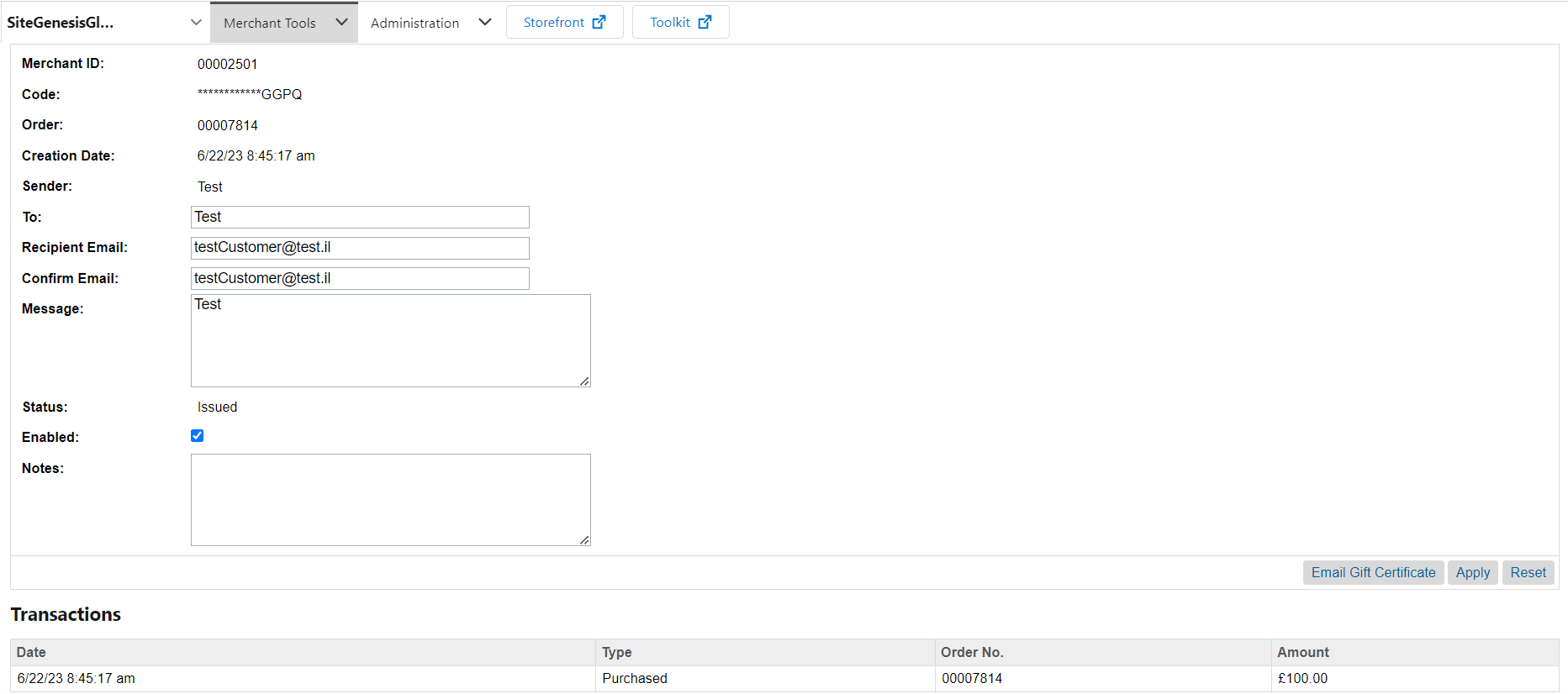
 A Gift Certificate is created on the SFCC instance after successful checkout:
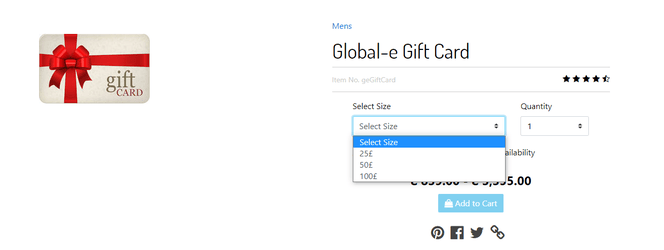
 This is how the gift card looks on the SFCC storefront:
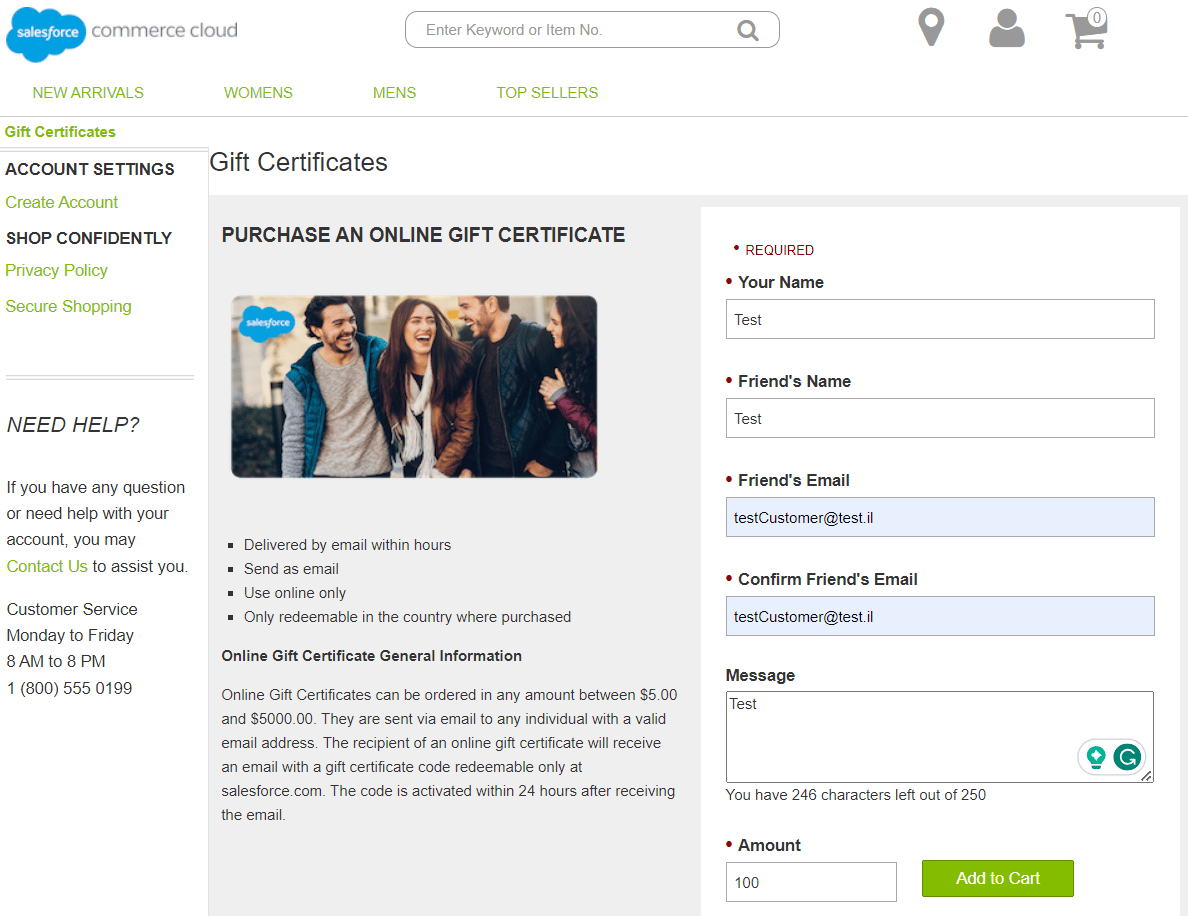
 Native Gift Certificate purchase page for SiteGenesis:
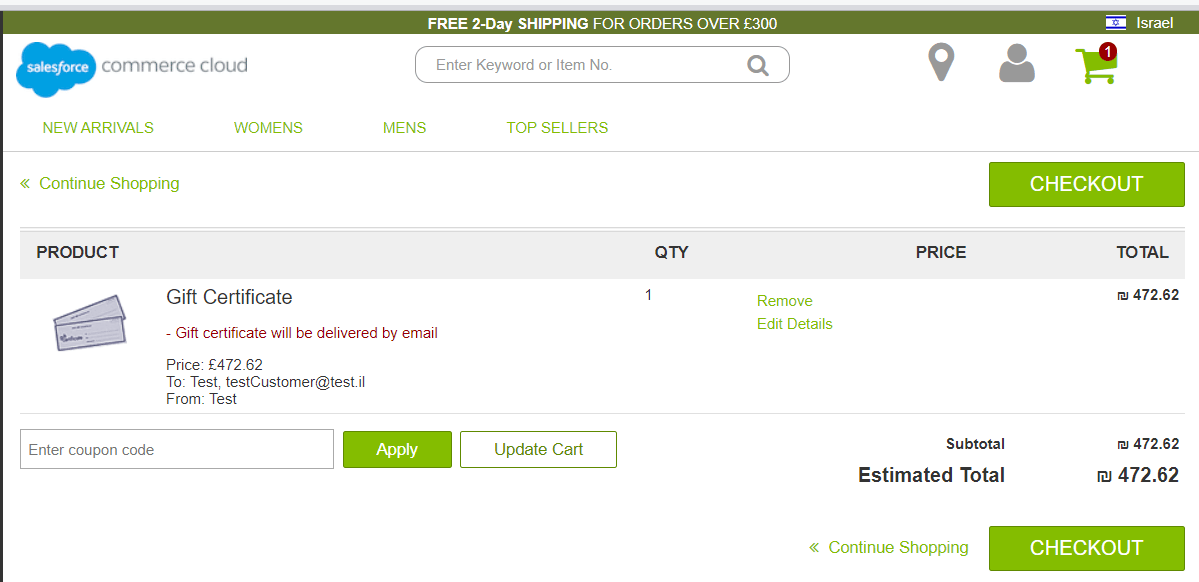
 Gift Certificate on the cart page:
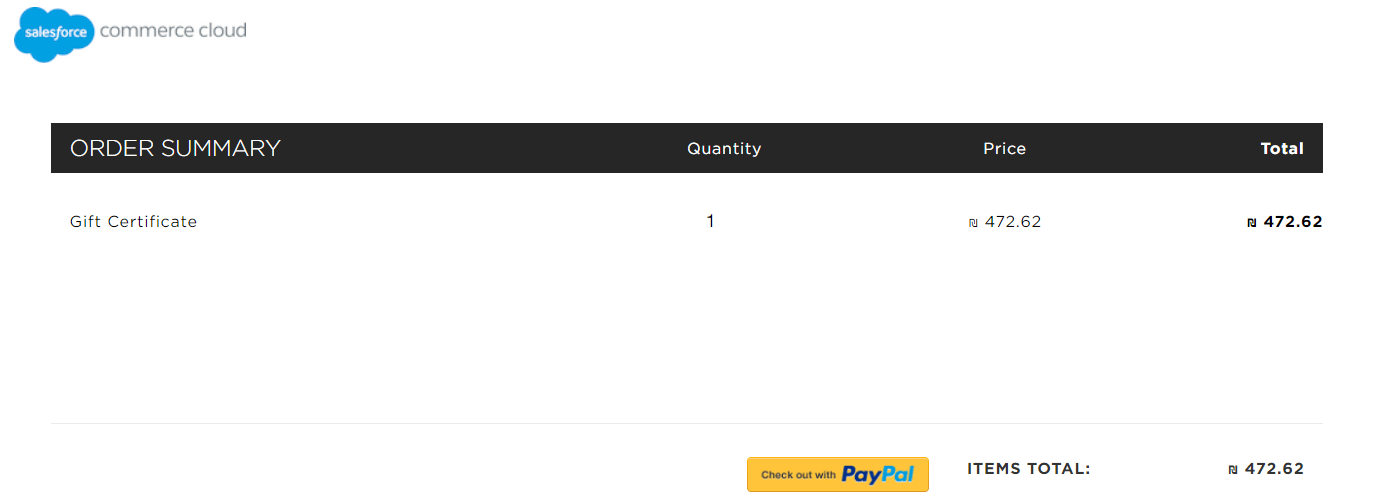
 Gift Certificate on the Global-e checkout page:
 ## Using Gift Cards
**“Validate” API call**
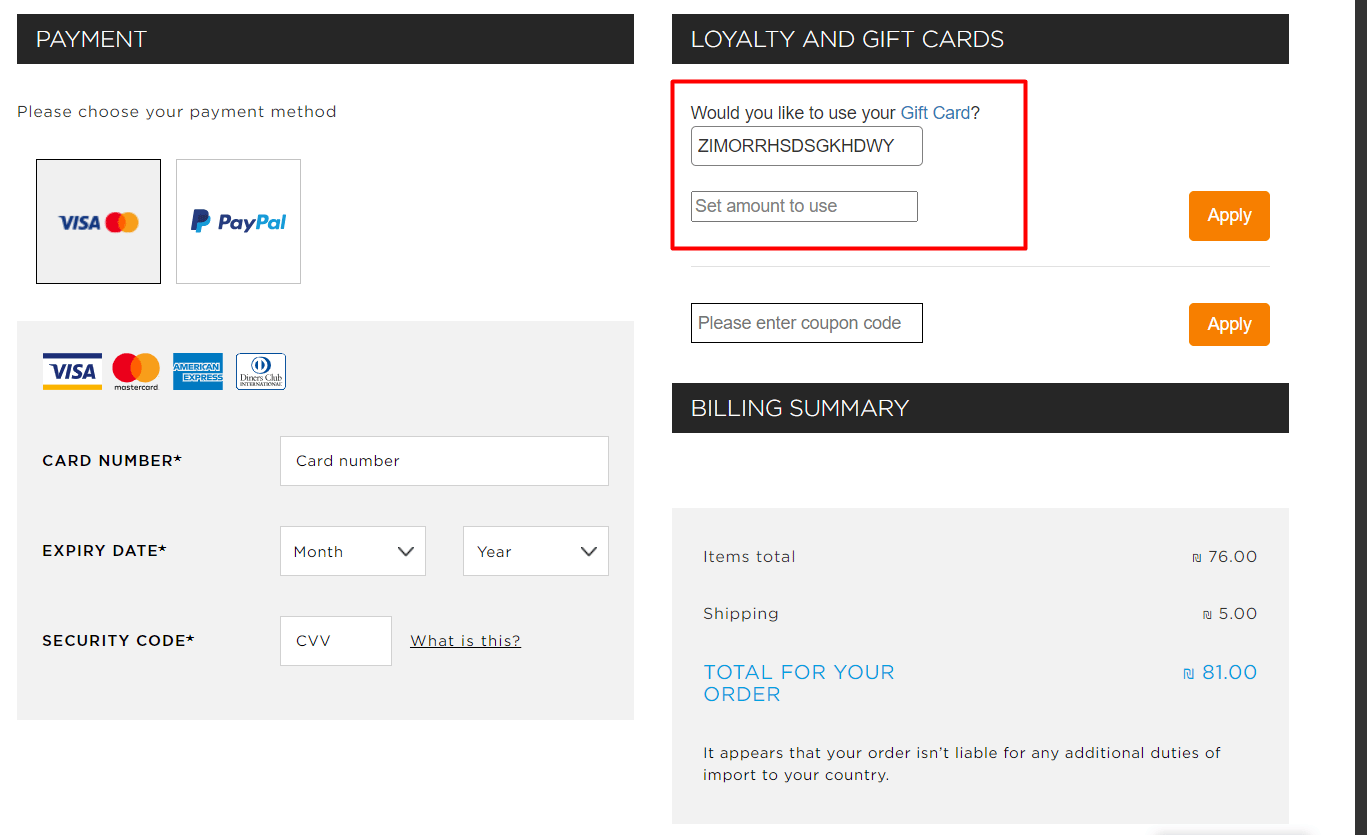
1. The customer enters all card data and clicks **Apply** to apply for a Gift Certificate.
Note: the count of fields for card data is configurable on the Global-e side and can be configured according to the project’s needs. There can be one field with Card ID, two fields with Card ID and Card PIN, etc.
## Using Gift Cards
**“Validate” API call**
1. The customer enters all card data and clicks **Apply** to apply for a Gift Certificate.
Note: the count of fields for card data is configurable on the Global-e side and can be configured according to the project’s needs. There can be one field with Card ID, two fields with Card ID and Card PIN, etc.
 2. Global-e sends a ‘Validate’ request to SFCC.
The request payload is parsed and SFCC checks if the card exists.
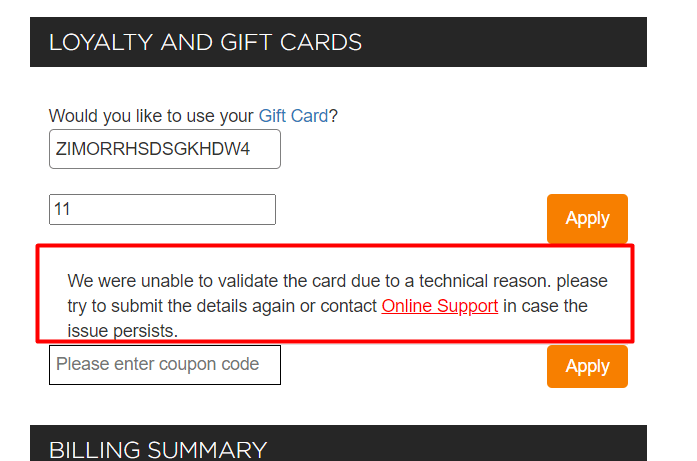
* If the card is not valid SFF responds with an error message.
2. Global-e sends a ‘Validate’ request to SFCC.
The request payload is parsed and SFCC checks if the card exists.
* If the card is not valid SFF responds with an error message.
 * If the card is valid:
* The card balance is converted to checkout currency.
* The UI of the Gift Cards section notifies the customer about the successful card application.
* The totals section is reloaded with information about how much money will be compensated from the Gift Card.
* If the card is valid:
* The card balance is converted to checkout currency.
* The UI of the Gift Cards section notifies the customer about the successful card application.
* The totals section is reloaded with information about how much money will be compensated from the Gift Card.
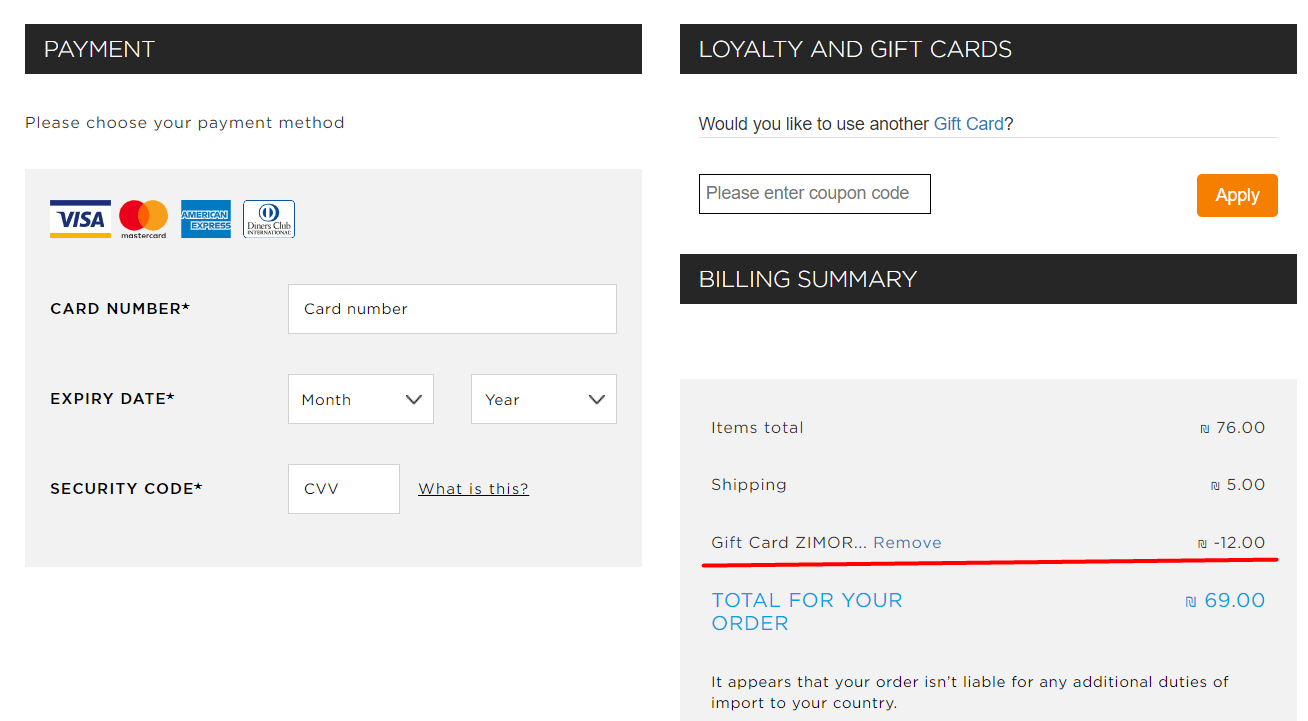 If the amount of the card covers the order's total amount, the customer can create an order without any additional payments.
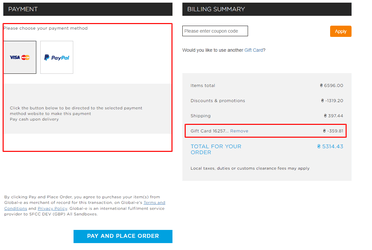
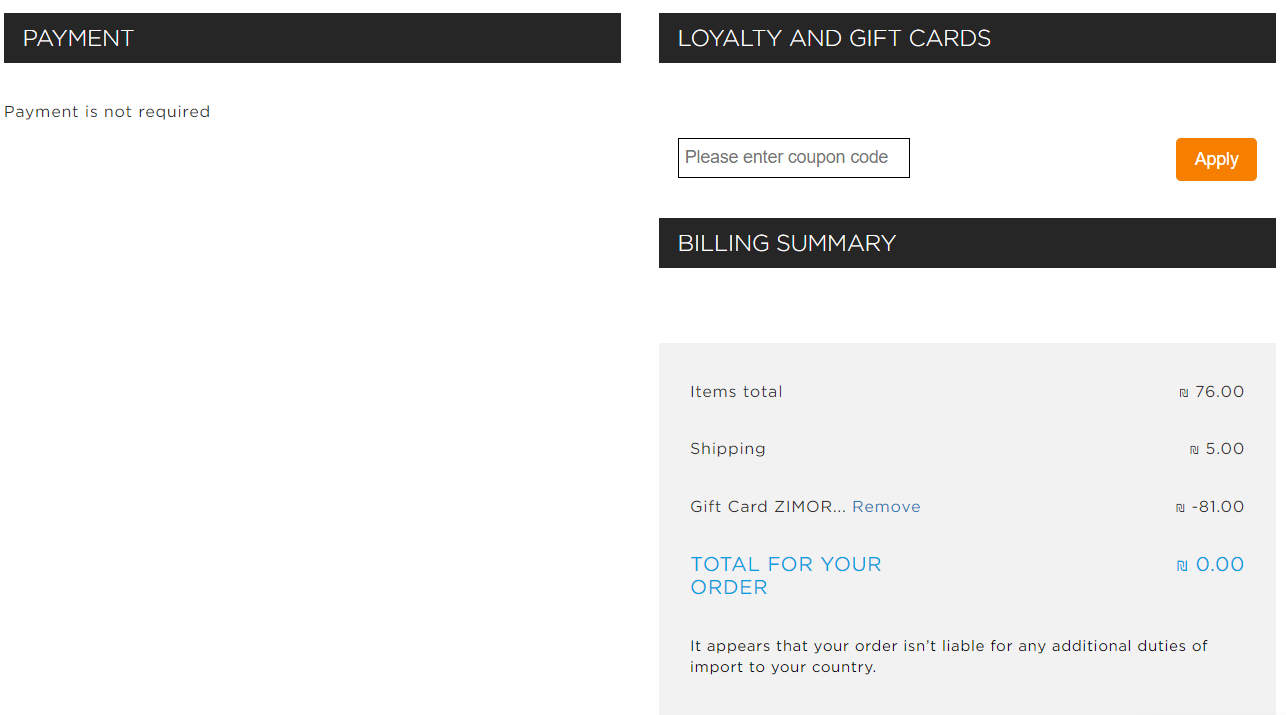 If the amount of the card covers only part of the order's total amount - the user should select a payment method to pay the rest.
 **“Redeem” API call**
After the customer clicks on ‘PAY AND PLACE ORDER' and receives a successful validation on the Global-e side, a 'Redeem’ request is sent from Global-e to SFCC.
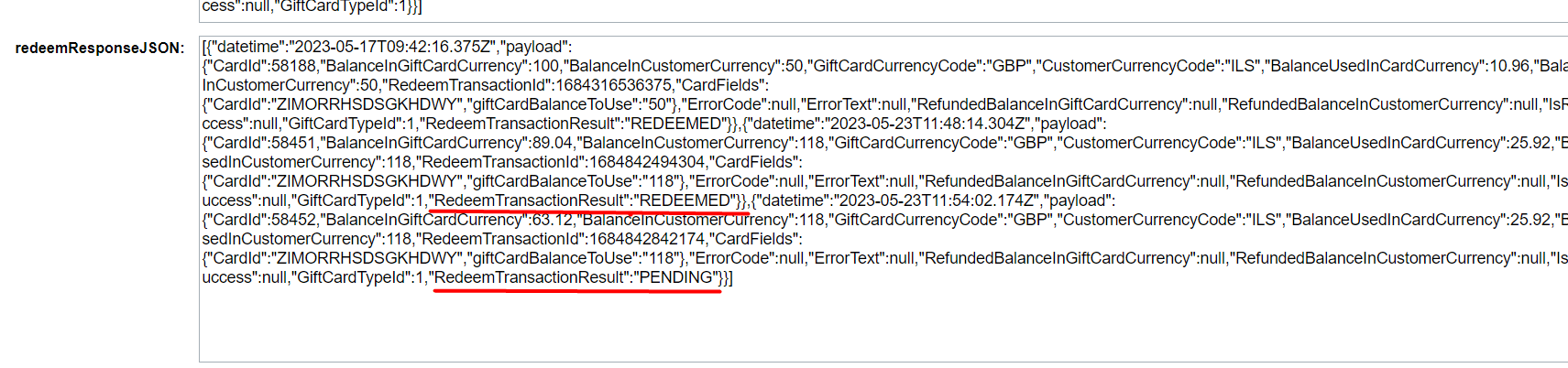
When an order is created on the Global-e side (and before it is created on the SFCC side) Global-e sends a “Redeem” request to SFCC. This redemption request will be detected as “PENDING” in the “redeemResponseJSON”, and real redemption for SFCC Gift Certificate will take place after the Global-e Payment Update request, and it will be detected as “REDEEMED” in the “redeemResponseJSON”.
**“Redeem” API call**
After the customer clicks on ‘PAY AND PLACE ORDER' and receives a successful validation on the Global-e side, a 'Redeem’ request is sent from Global-e to SFCC.
When an order is created on the Global-e side (and before it is created on the SFCC side) Global-e sends a “Redeem” request to SFCC. This redemption request will be detected as “PENDING” in the “redeemResponseJSON”, and real redemption for SFCC Gift Certificate will take place after the Global-e Payment Update request, and it will be detected as “REDEEMED” in the “redeemResponseJSON”.
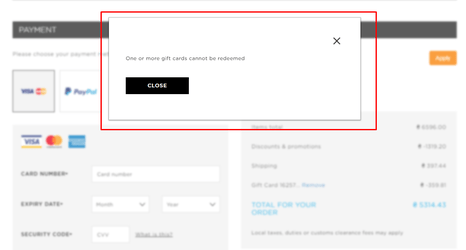
 If the 'Redeem' for the card fails - an error message is displayed to the user and the order is not created on the SFCC side.
 If the 'Redeem' for the card was successful - the confirmation page is displayed to the user and the order is created on the SFCC side.
**Refund’ API call**
A Refund request is sent from Global-e to SFCC if a refund is created on the Global-e side. For example: if the order is set to ‘Cancelled' on the Global-e side.
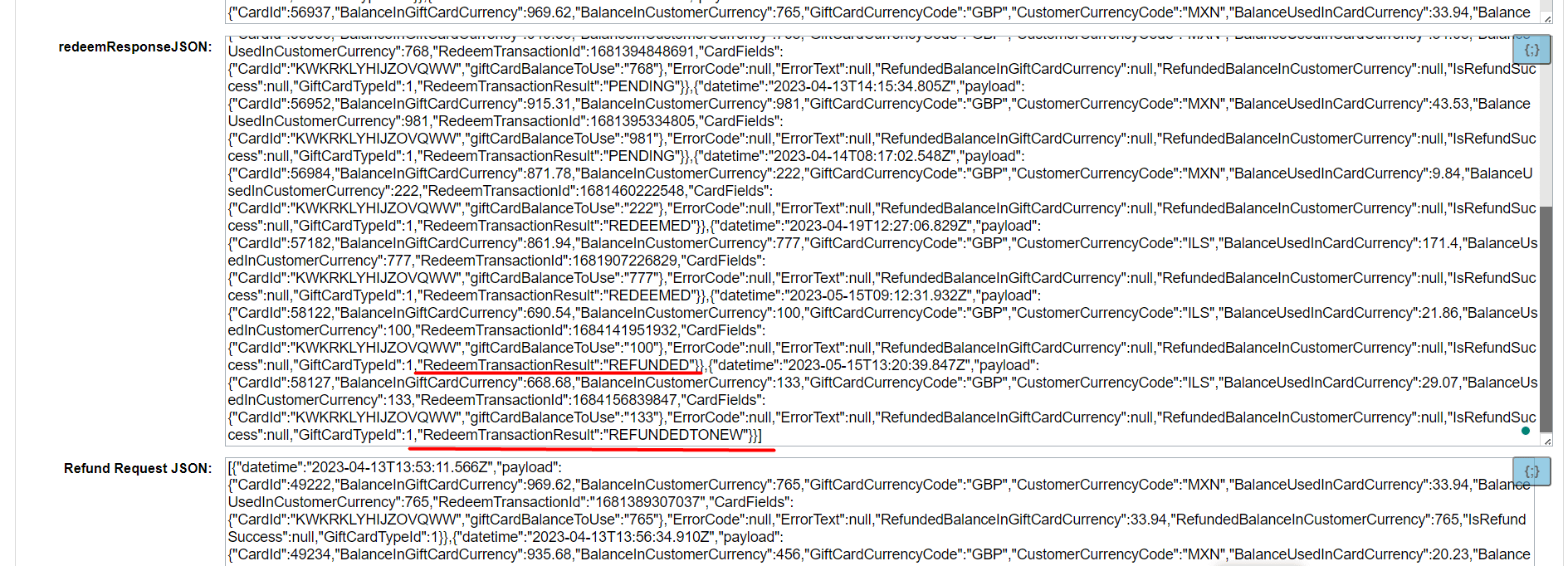
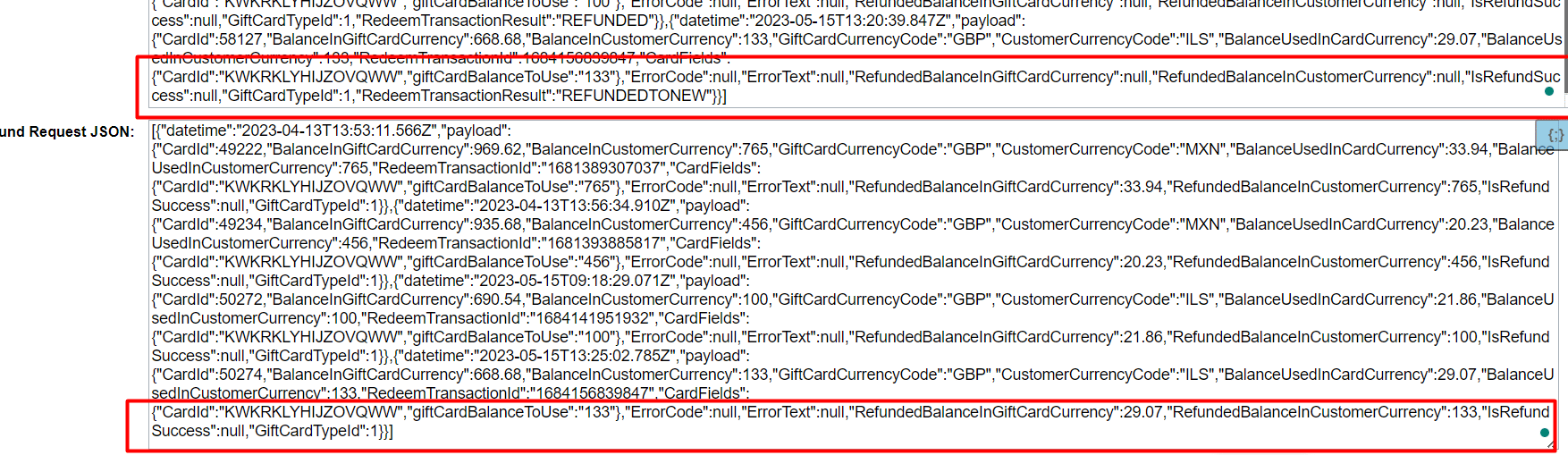
If `RedeemTransactionResult` has the status **PENDING**, it will be changed to **REFUNDED**. If `RedeemTransactionResult` has the status **REDEEMED**, a new SFCC Gift Certificate will be created with the refund amount, and the `RedeemTransactionResult` status will change to **REFUNDEDTONEW**.
If the 'Redeem' for the card was successful - the confirmation page is displayed to the user and the order is created on the SFCC side.
**Refund’ API call**
A Refund request is sent from Global-e to SFCC if a refund is created on the Global-e side. For example: if the order is set to ‘Cancelled' on the Global-e side.
If `RedeemTransactionResult` has the status **PENDING**, it will be changed to **REFUNDED**. If `RedeemTransactionResult` has the status **REDEEMED**, a new SFCC Gift Certificate will be created with the refund amount, and the `RedeemTransactionResult` status will change to **REFUNDEDTONEW**.
 **Used ’Gift Cards’ details**
Information about used cards is added to the payload of ‘Send Order To Merchant' and 'Payment Notification’ requests
## Required customization
**Purchase**
To enable the ability to buy Gift Cards as regular products via Global-e checkout changes need to be made to the code.
The following steps should be implemented:
1. SFCC hook
In the project’s extended cartridge (or depending on used SFCC architecture in ‘int\_globale\_sfra'/’int\_globale\_sitegenesis') a hook handler should be added for the SFCC hook that is triggered during the payment update.
**Path**: ./hooks.json
```
{
"hooks": [
{
"name": "globale.onAfterPaymentUpdate",
"script": "./cartridge/scripts/globale/hooks/onAfterPaymentUpdate.js"
}
]
}
```
2. Hook’s handler
**Path**: ./cartridge/scripts/globale/hooks/onAfterPaymentUpdate.js
The logic for creating gift cards should be added in the hook's handler.
**Example**
```
'use strict';
exports.onAfterPaymentUpdate = function (order, payload) {
var globaleHelpers = require('*/cartridge/scripts/helpers/globaleHelpers');
var logger = globaleHelpers.getLogger();
try {
// create gift cards
var giftCard = new (require('*/cartridge/models/globale/alternativePayments/GiftCardStrategy'))(payload);
giftCard.create(order);
} catch (e) {
logger.error('onAfterPaymentUpdate: ERROR: {0}', logger.message(e));
}
};
```
**Using**
Demo implementation in Global-e cartridges was done based on SFCC custom objects with type 'DEMO\_GLOBALE\_GIFT\_CARDS'. The project’s development team should override demo implementation and add a ‘Gift Card' provider depending on the project’s needs.
**Gift Card Provider** should be overridden by path: **./scripts/globale/alternativePayments/providers/GiftCardProvider.js**
**To customize a Gift Certificate logic you can add the following hooks**
```
{
"name": "globale.onAfterGiftCertificateRefund",
"script": "./cartridge/scripts/hooks/giftCertificate/onAfterGiftCertificateRefund.js"
},
```
```
{
"name": "globale.onAfterGiftCertificateRedeem",
"script": "./cartridge/scripts/hooks/giftCertificate/onAfterGiftCertificateRedeem.js"
},
```
```
{
"name": "globale.onAfterGiftCertificateCreate",
"script": "./cartridge/scripts/hooks/giftCertificate/onAfterGiftCertificateCreate.js"
},
```
**order create - OCAPI flow**
```
{
"name": "onAfterGiftCertificateOrderCreate",
"script": "./cartridge/scripts/hooks/giftCertificate/onAfterGiftCertificateOrderCreate.js"
},
```
## Summary
The demo implementation (that is based on using SFCC custom objects.) was made with a simple structure as a test example which allows understanding of the main things that can be used in the scope of the ‘Gift Cards' feature.
**Used ’Gift Cards’ details**
Information about used cards is added to the payload of ‘Send Order To Merchant' and 'Payment Notification’ requests
## Required customization
**Purchase**
To enable the ability to buy Gift Cards as regular products via Global-e checkout changes need to be made to the code.
The following steps should be implemented:
1. SFCC hook
In the project’s extended cartridge (or depending on used SFCC architecture in ‘int\_globale\_sfra'/’int\_globale\_sitegenesis') a hook handler should be added for the SFCC hook that is triggered during the payment update.
**Path**: ./hooks.json
```
{
"hooks": [
{
"name": "globale.onAfterPaymentUpdate",
"script": "./cartridge/scripts/globale/hooks/onAfterPaymentUpdate.js"
}
]
}
```
2. Hook’s handler
**Path**: ./cartridge/scripts/globale/hooks/onAfterPaymentUpdate.js
The logic for creating gift cards should be added in the hook's handler.
**Example**
```
'use strict';
exports.onAfterPaymentUpdate = function (order, payload) {
var globaleHelpers = require('*/cartridge/scripts/helpers/globaleHelpers');
var logger = globaleHelpers.getLogger();
try {
// create gift cards
var giftCard = new (require('*/cartridge/models/globale/alternativePayments/GiftCardStrategy'))(payload);
giftCard.create(order);
} catch (e) {
logger.error('onAfterPaymentUpdate: ERROR: {0}', logger.message(e));
}
};
```
**Using**
Demo implementation in Global-e cartridges was done based on SFCC custom objects with type 'DEMO\_GLOBALE\_GIFT\_CARDS'. The project’s development team should override demo implementation and add a ‘Gift Card' provider depending on the project’s needs.
**Gift Card Provider** should be overridden by path: **./scripts/globale/alternativePayments/providers/GiftCardProvider.js**
**To customize a Gift Certificate logic you can add the following hooks**
```
{
"name": "globale.onAfterGiftCertificateRefund",
"script": "./cartridge/scripts/hooks/giftCertificate/onAfterGiftCertificateRefund.js"
},
```
```
{
"name": "globale.onAfterGiftCertificateRedeem",
"script": "./cartridge/scripts/hooks/giftCertificate/onAfterGiftCertificateRedeem.js"
},
```
```
{
"name": "globale.onAfterGiftCertificateCreate",
"script": "./cartridge/scripts/hooks/giftCertificate/onAfterGiftCertificateCreate.js"
},
```
**order create - OCAPI flow**
```
{
"name": "onAfterGiftCertificateOrderCreate",
"script": "./cartridge/scripts/hooks/giftCertificate/onAfterGiftCertificateOrderCreate.js"
},
```
## Summary
The demo implementation (that is based on using SFCC custom objects.) was made with a simple structure as a test example which allows understanding of the main things that can be used in the scope of the ‘Gift Cards' feature.