> ## Documentation Index
> Fetch the complete documentation index at: https://pro-docs.bglobale.com/llms.txt
> Use this file to discover all available pages before exploring further.
# Accessing Your Policy Rules
Because Global-e configures automation per policy rule, you can combine manual and automatic processing across different scenarios.
1. In the left menu, navigate to to *Settings > Return Policy*.
2. The **Settings – Return Panel** is displayed.
3. On the right side of the screen, click **Expand all**.
4. Click the **pencil icon** located to the right of the policy rule you want to update.
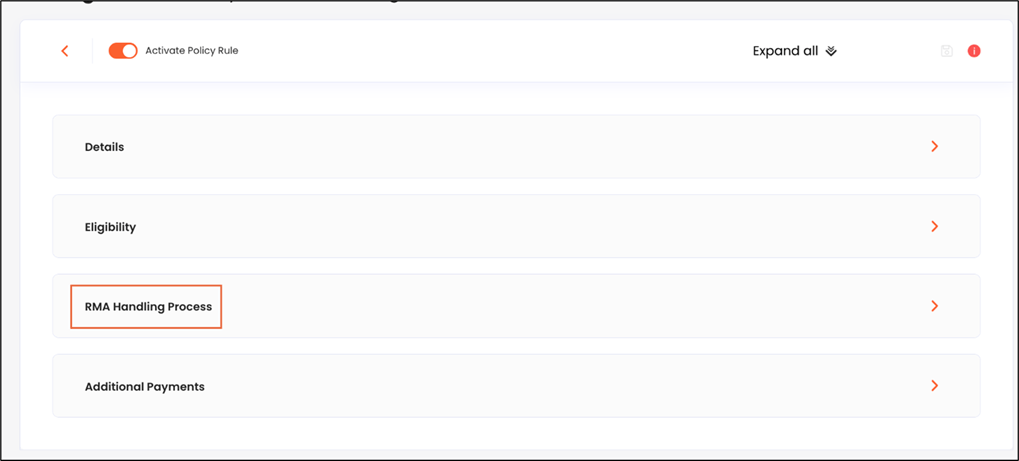 5. The selected policy rule’s details are displayed.
6. Expand the **RMA Handling Process** section.
Do one or more of the following:
* Configure Auto-Approval
* Configure Auto-Refund
* Set Auto-Mark as Done
* Set Mark as Done after Partial Validation
* Enable item validation
* Validate items
* Verify and monitor your automation results
5. The selected policy rule’s details are displayed.
6. Expand the **RMA Handling Process** section.
Do one or more of the following:
* Configure Auto-Approval
* Configure Auto-Refund
* Set Auto-Mark as Done
* Set Mark as Done after Partial Validation
* Enable item validation
* Validate items
* Verify and monitor your automation results